Docs / for WooCommerce / WooCommerce smart collections
AEO Ultimate for WooCommerce
WooCommerce smart collections
Your catalogue answers “what do you sell”. It does not answer “what should a beginner buy”, the question shoppers ask an AI assistant before they know what they want. Smart Collections turns the categories you already have into answers: a group of products, who it is for, and structured data an AI can quote. Watch the walkthrough, or read the guide below.
Read the transcript
0:00 What a catalogue can't answer
Your catalogue answers "what do you sell". It doesn't answer "what should a beginner buy", the question shoppers ask an assistant before they know what they want. Smart Collections turns the categories you already have into answers: a group of products, who it's for, and structured data an AI can quote.
0:21 Nothing changes until you say so
Turning the module on changes nothing on your site. Publishing takes two switches: one in Settings for the whole module, and one on each collection.
0:34 Discover what you already have
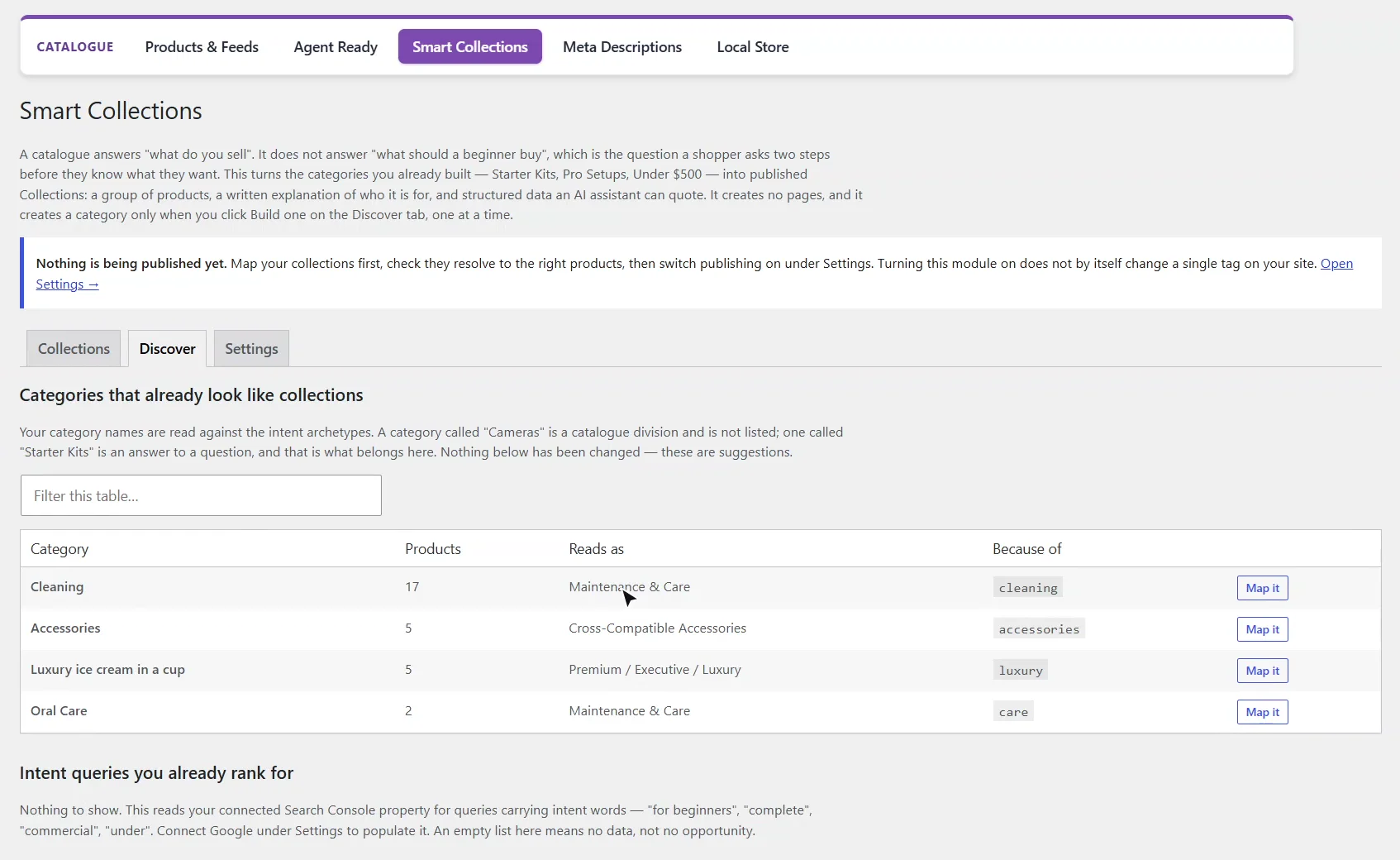
Discover reads your category names against intent types. A category called Cameras is just a division of the catalogue, so it's skipped. One that reads like an answer is suggested, with the word that matched. Here, Cleaning reads as maintenance and care.
0:55 Map a category
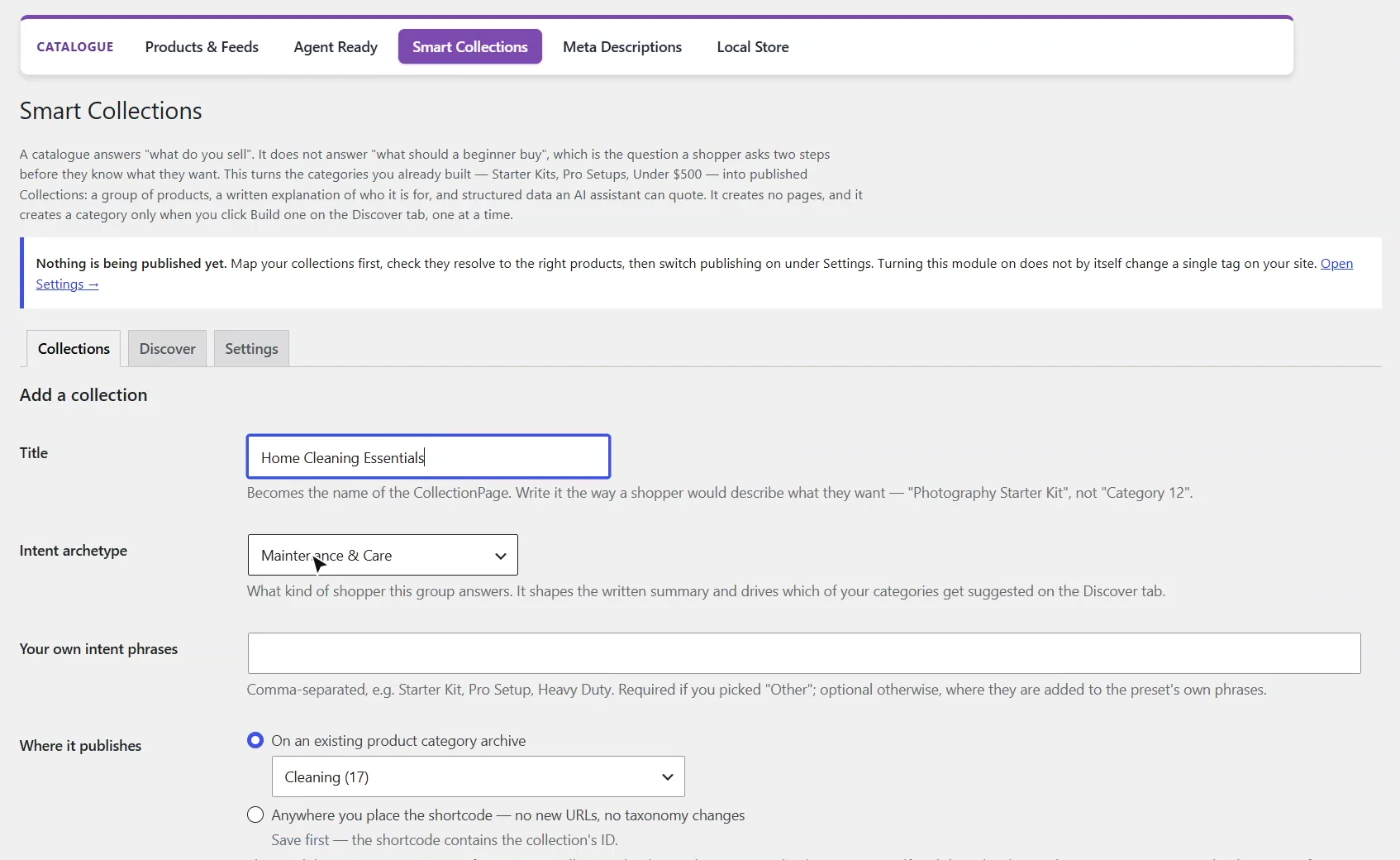
Map it fills in the form. Give the collection a title the way a shopper would say it, add the question it answers to steer the wording, and leave the summary blank to have it built from the catalogue. Tick publish, and add it.
1:11 Check it resolves
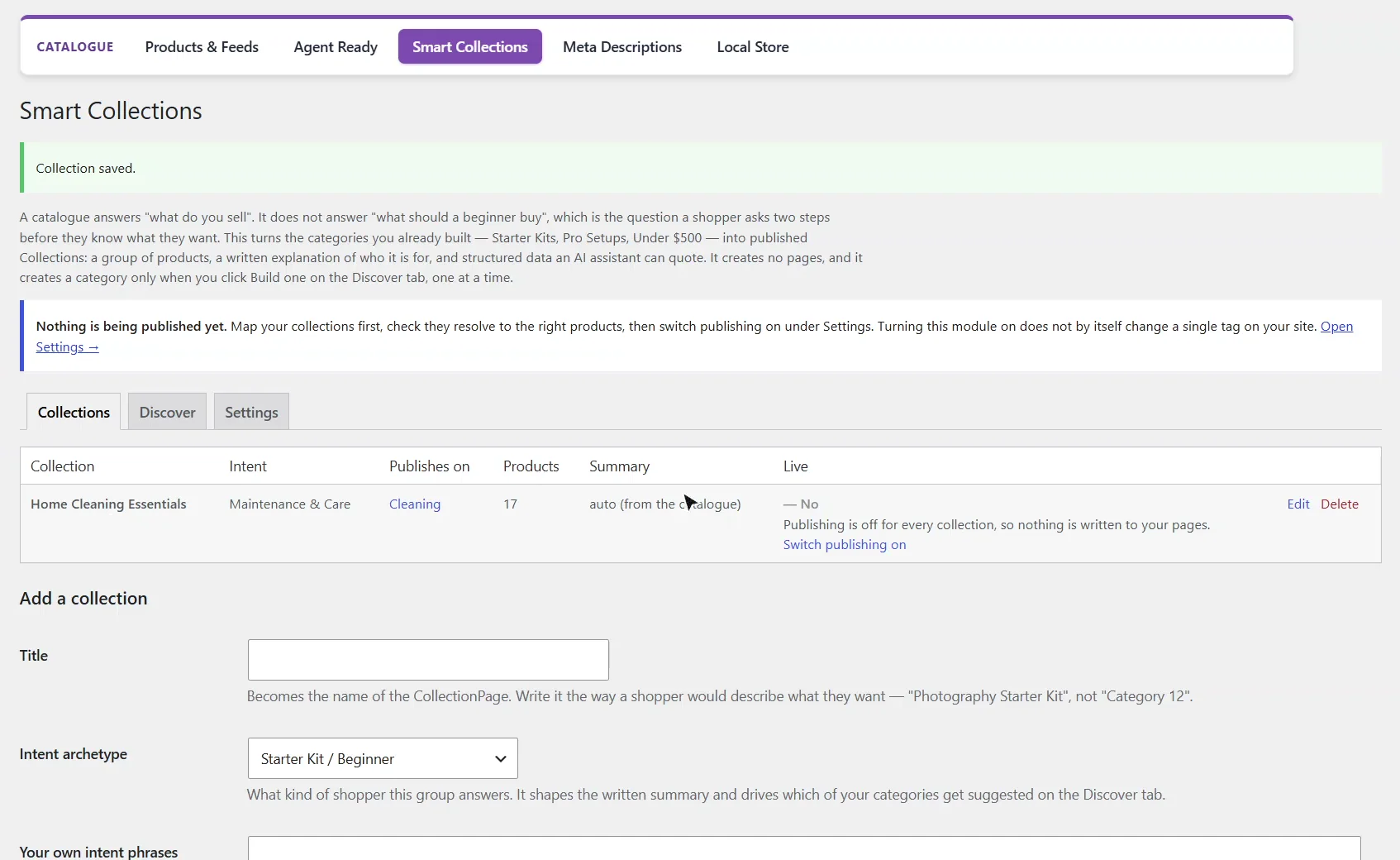
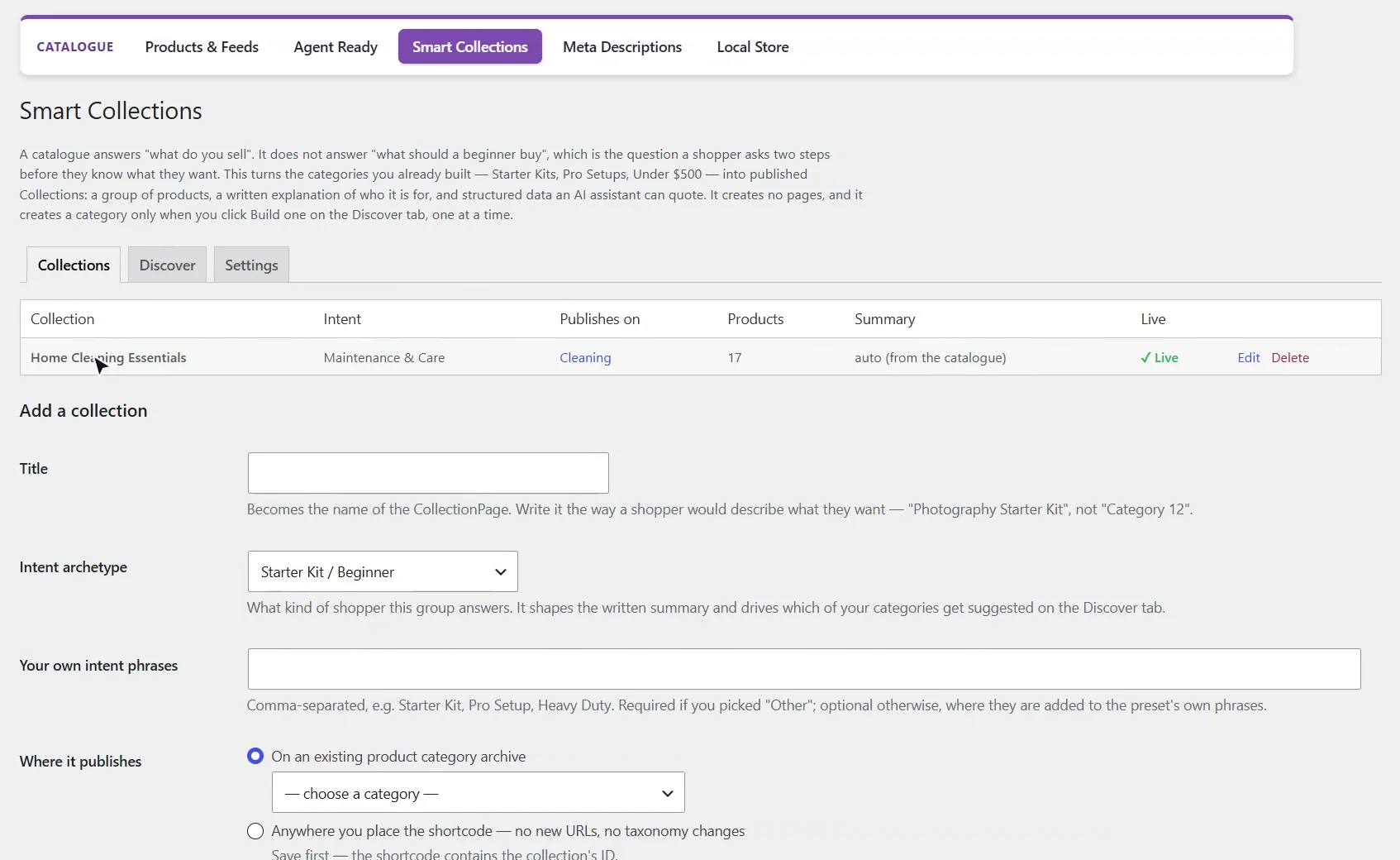
The collection resolves to seventeen real products, and its summary will be written from the catalogue: product count, price range and stock, all read live. It isn't live yet, because publishing is still switched off for the whole module.
1:29 Switch publishing on
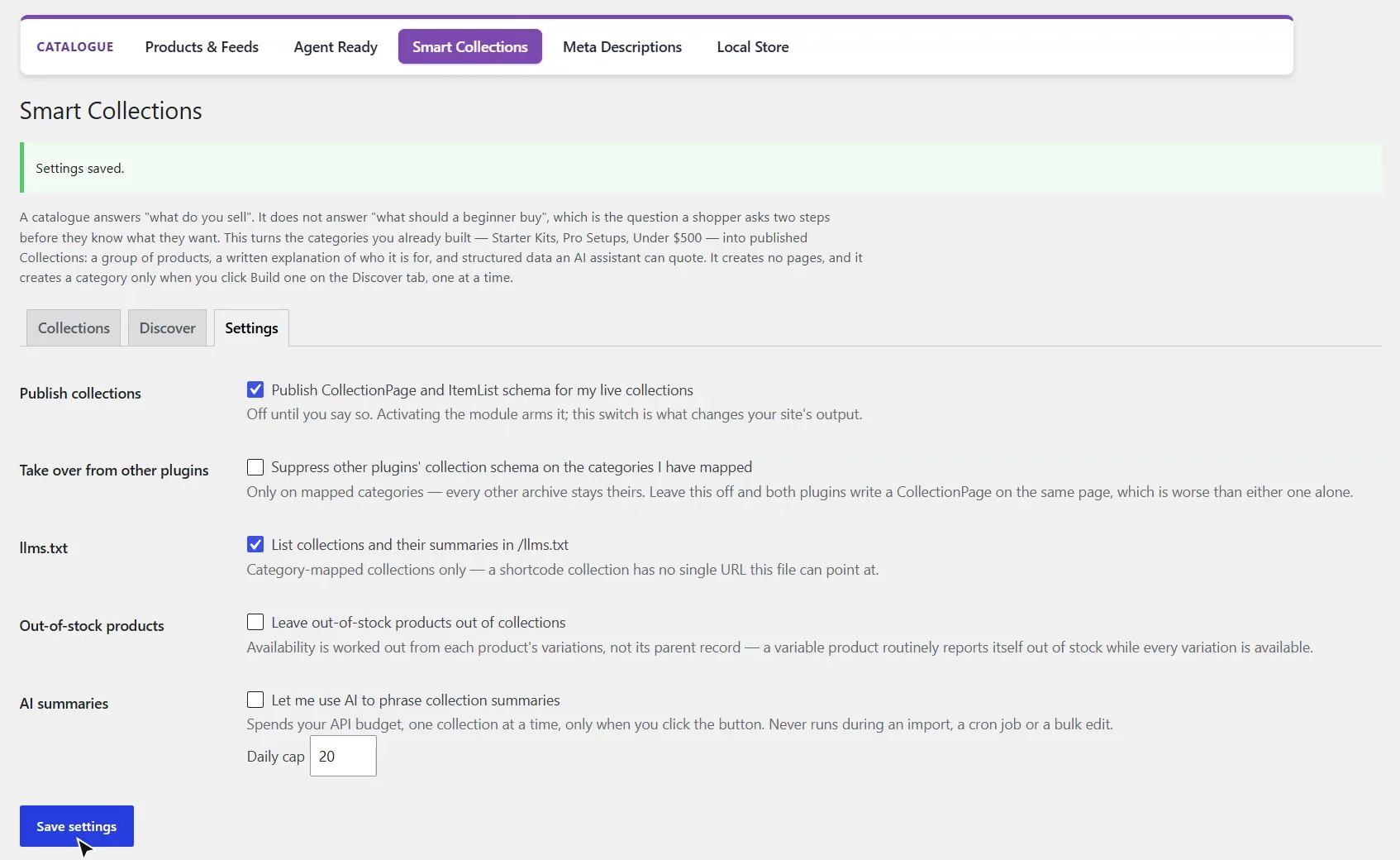
In Settings, switch publishing on. If another SEO plugin already writes collection schema, take over on the categories you've mapped, so the page never carries two. Collections can also go into your llms dot text, and out-of-stock products can be left out, worked out from the variations.
1:52 Live
Back on Collections, it's live. The Cleaning category now publishes a collection page and an item list that points at each product, instead of copying the products into the page.
2:05 Next: Promotions
That's Smart Collections: answers to the questions shoppers ask before they know what to buy. Next, Promotions and price rules.
Which of my categories can become collections?
Turn on the Smart Collections module under AEO Ultimate → Modules, then open AEO Ultimate → Catalogue → Smart Collections → Discover. Your category names are read against intent types such as Starter Kit, Pro, Budget or Maintenance & Care. A category called “Cameras” is just a division of the catalogue and is left out; one that reads like an answer is suggested, with the word that matched. Matching is on whole words in the category name and slug, so “pro” never matches “Promotions”.
How do I turn a category into a collection?
Click Map it. The form is filled in with the category and its intent. Give the collection a title the way a shopper would say it, add the question it answers if you like (it steers the wording and is never published as-is), and leave the summary blank to have it written from the catalogue: product count, price range and stock, read live. Anything you type yourself wins and is never overwritten. Tick Publish this collection and click Add collection.
A collection with no category of its own can go on any page you have written, with the [aeowc_smart_collection id="…"] shortcode.
Why is my collection not live yet?
Publishing takes two switches, on purpose: the one on each collection, and one in Settings for the whole module. Turning the module on changes nothing on your site, so you can map collections and check they resolve to the right products first.
What do the Smart Collections settings do?
Publish collections is the module switch. Take over from other plugins suppresses another SEO plugin’s collection schema on the categories you have mapped, and only those, so a page never carries two. llms.txt lists your collections and their summaries in /llms.txt. Out-of-stock products can be left out, with stock worked out from each product’s variations rather than its parent record. AI summaries are off unless you switch them on, run one collection at a time when you click, and stop at the daily cap.
What does a collection publish?
On the mapped category page: a CollectionPage with the summary as its description, and an ItemList that points at each product by URL instead of copying the products into the page. The products themselves stay described on their own pages.
What should I set up next?
Next is Promotions and price rules.
All WooCommerce tutorials
- Getting started
- Product schema
- Agent Ready
- Agentic checkout
- Merchant Center
- Meta descriptions and AI enrichment
- Store trust and reviews
- Local Store
- Smart Collections
- Promotions and price rules
- AI citations and the crawler log
- AI Ready and the schema detector
- The RAG Engine (coming soon)
← Previous: Local Store
Next: Promotions and price rules →
Still stuck?
Message me directly — free tier included. Most replies land within the hour during Tampa working hours. Get support →