Docs / for WooCommerce / WooCommerce local store and “near me”
AEO Ultimate for WooCommerce
WooCommerce local store and “near me”
When someone asks an AI assistant where they can buy something near them, the answer comes from a chain of facts: a product, an offer, a store at a real place, and the business behind it. Local Store publishes that chain for a WooCommerce shop with a counter, and checks it link by link. Watch the walkthrough, or read the guide below.
Read the transcript
0:00 Answering "near me"
When someone asks an assistant where they can buy something near them, the answer comes from a chain of facts: a product, an offer, a store at a real place, and the business behind it. Local Store publishes that chain. It's off until you switch it on.
0:19 Reusing Point of Sale details
If you use WooCommerce Point of Sale, the plugin finds the shop details you already entered there. It also warns when the two addresses don't match, because the published one is the one search engines will believe. This demo store uses a placeholder address. One click copies the phone number across, and nothing you typed is overwritten.
0:40 Switch on and set the address
Switch on local business schema. The address is seeded from your WooCommerce settings. Pick the most specific business type you can, and add your coordinates. Nothing is looked up for you, and an out-of-range value is thrown away, not corrected.
0:57 Opening hours
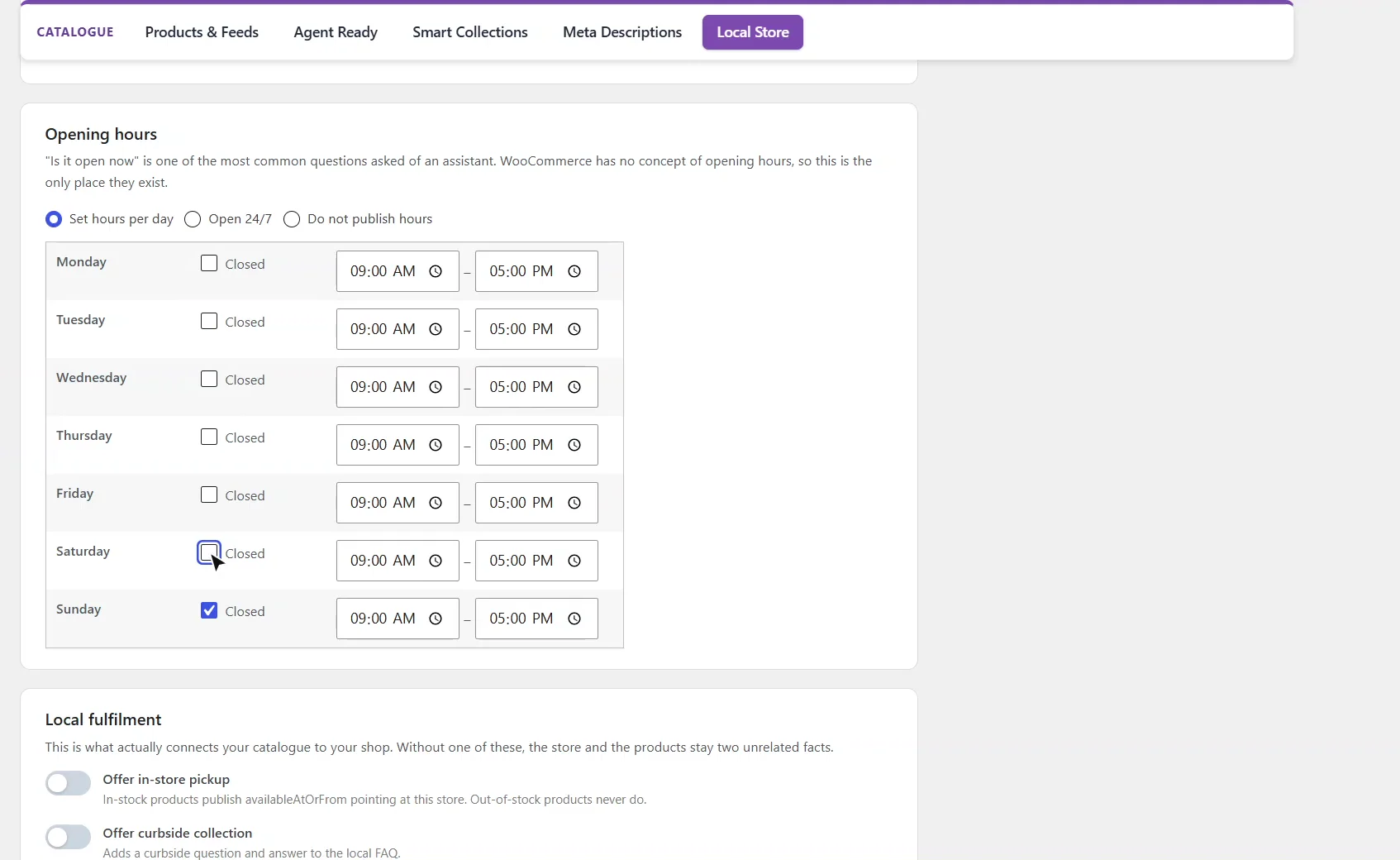
"Is it open now" is one of the most common questions people ask an assistant, and WooCommerce has no opening hours of its own. Set them here, Monday to Saturday.
1:08 Pickup connects products to the shop
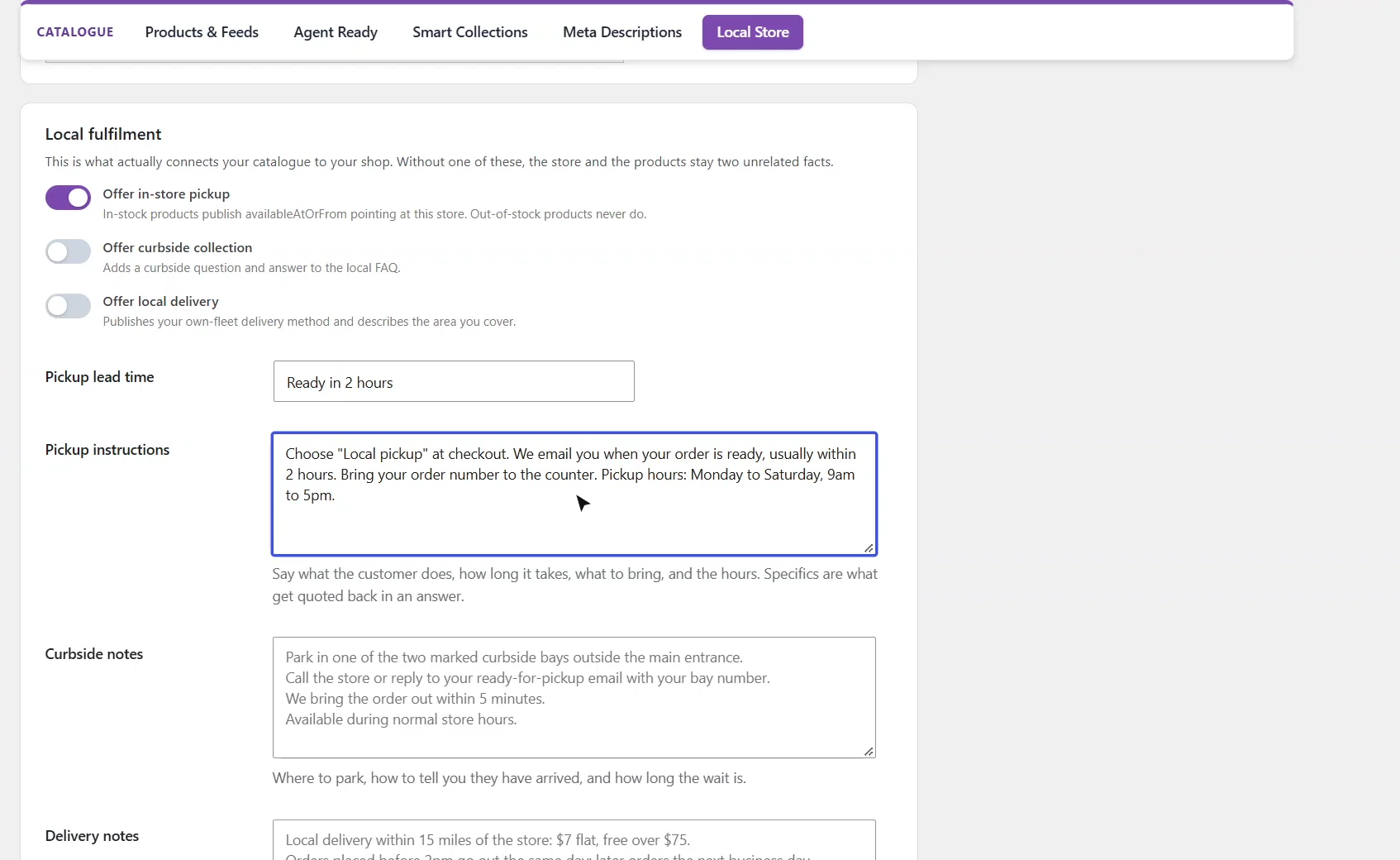
In-store pickup is what actually connects your catalogue to your shop. In-stock products then name this store as a pickup point, and out-of-stock products never do. Say how long pickup takes and what the customer does, because specifics are what get quoted back.
1:26 Service area
The service area can come straight from your shipping zones, so it stays true as they change. This store has no shipping zones, so set a fifteen-mile radius around the store instead, and save.
1:41 Visible on the page
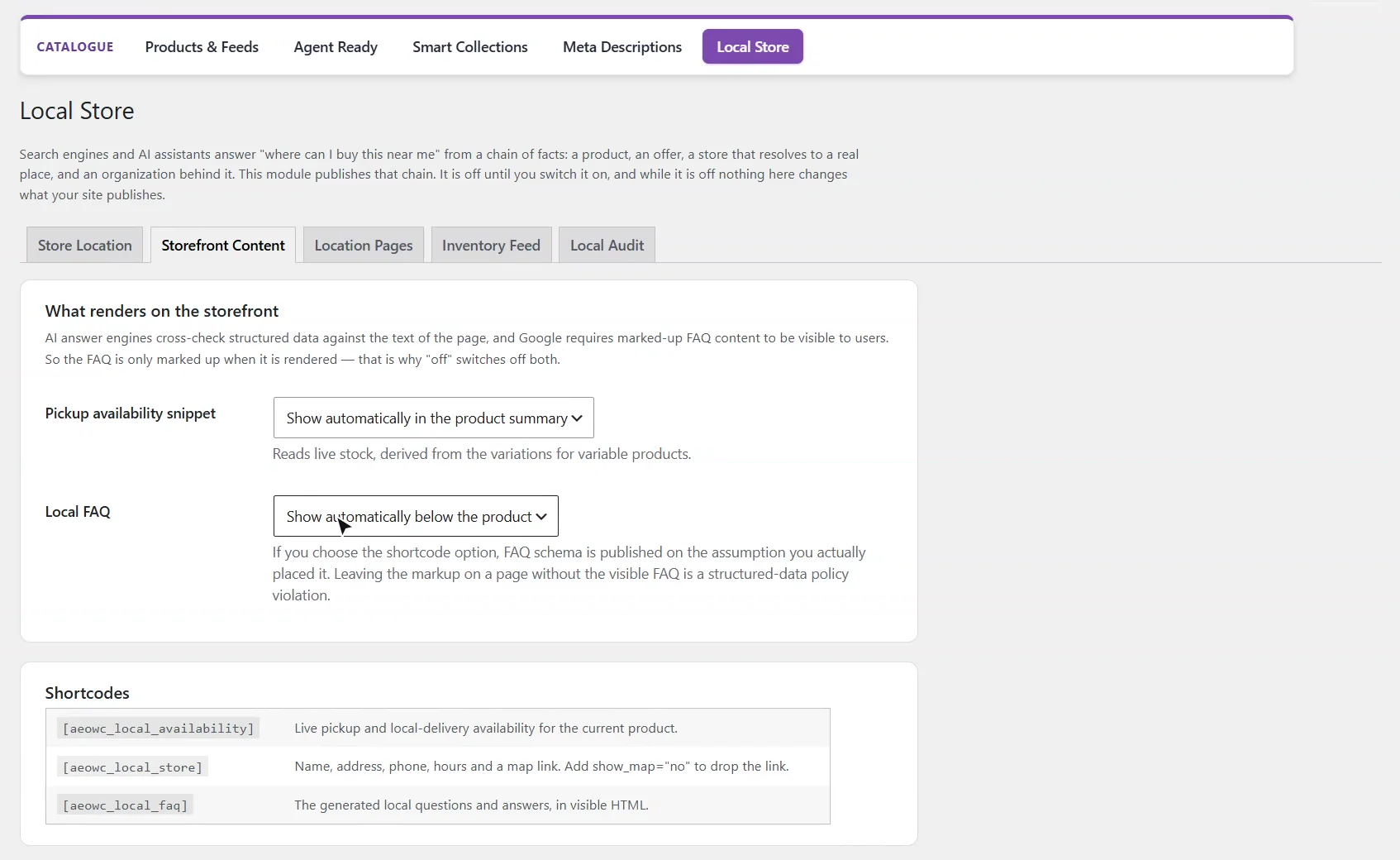
Storefront Content decides what shoppers see. Answer engines check schema against the page, and Google requires marked-up FAQs to be visible, so the local FAQ is only marked up when it's shown. Each piece also has a shortcode.
2:00 What a shopper sees
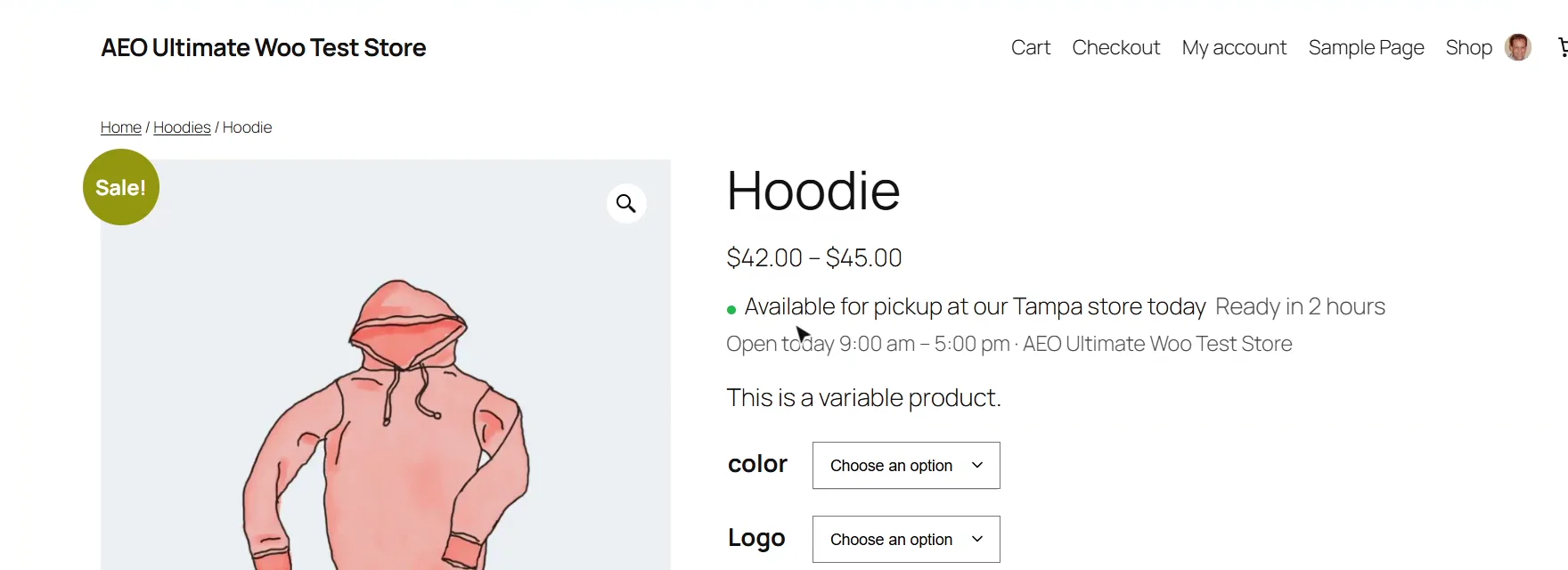
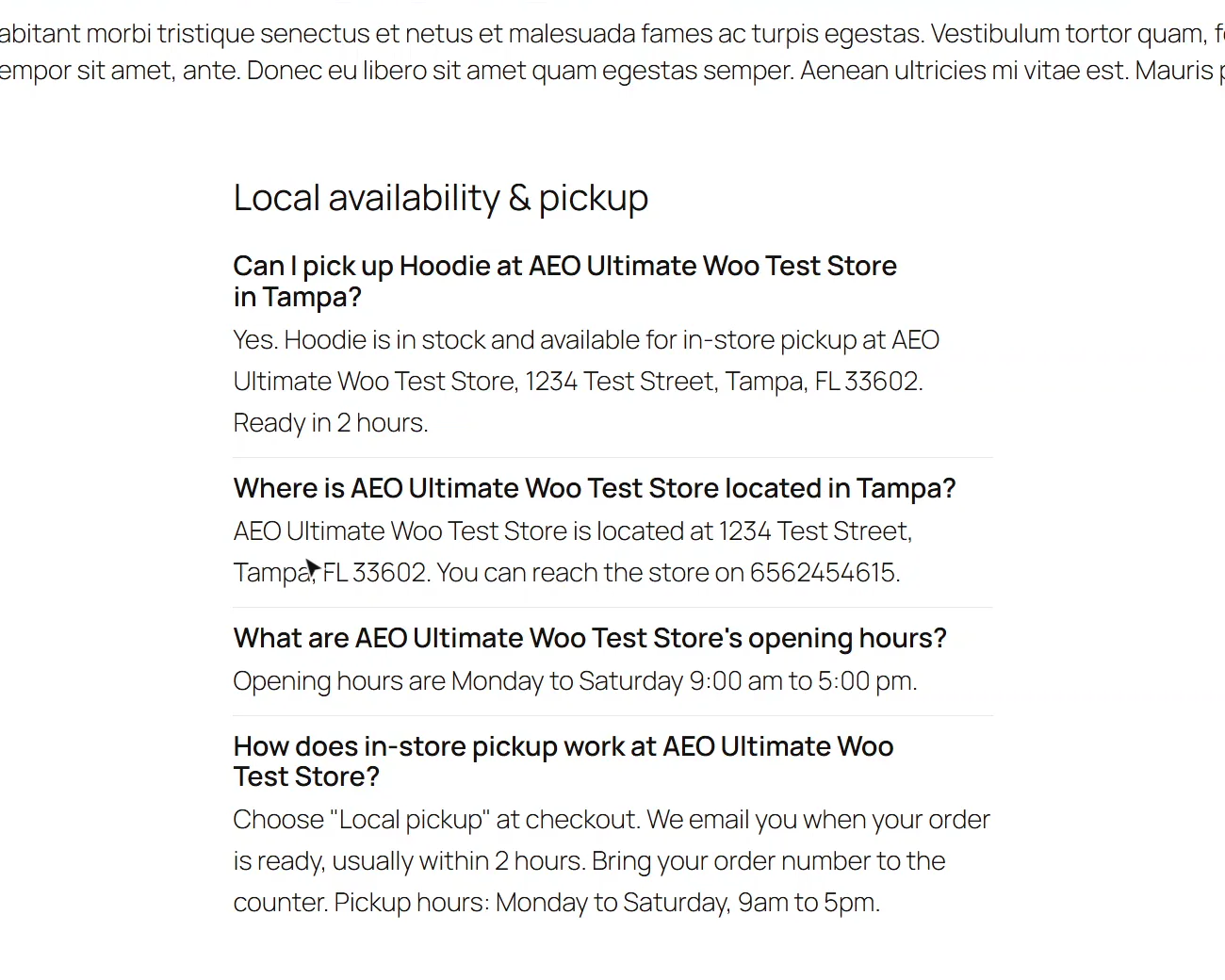
On a product page, the shopper now sees pickup availability from live stock, worked out from the variations on a variable product like this hoodie, and a local FAQ underneath, built from the same settings as the schema.
2:16 Location pages, carefully
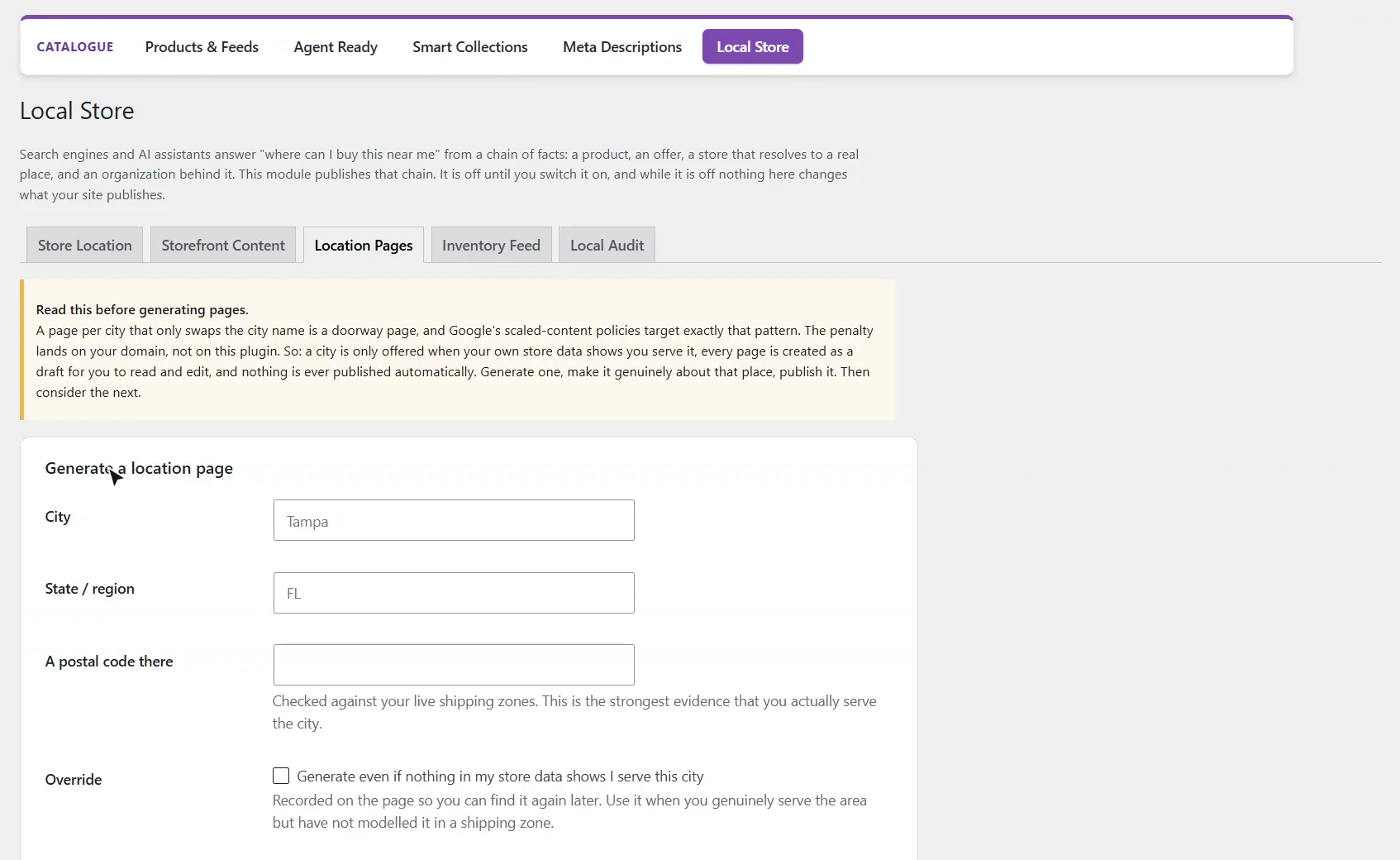
Location Pages can draft a page per city, but a page that only swaps the city name is a doorway page, and the penalty lands on your domain. So each city is checked against your shipping zones, any override is recorded, every page starts as a draft, and nothing is published for you.
2:39 Local inventory feed
The Inventory Feed tab serves a Merchant Center local inventory feed at a fixed address. That's how Google Shopping and Maps learn what's in stock at your shop. It needs the store code from your Google Business Profile, and every product left out is counted.
2:58 The Local Audit
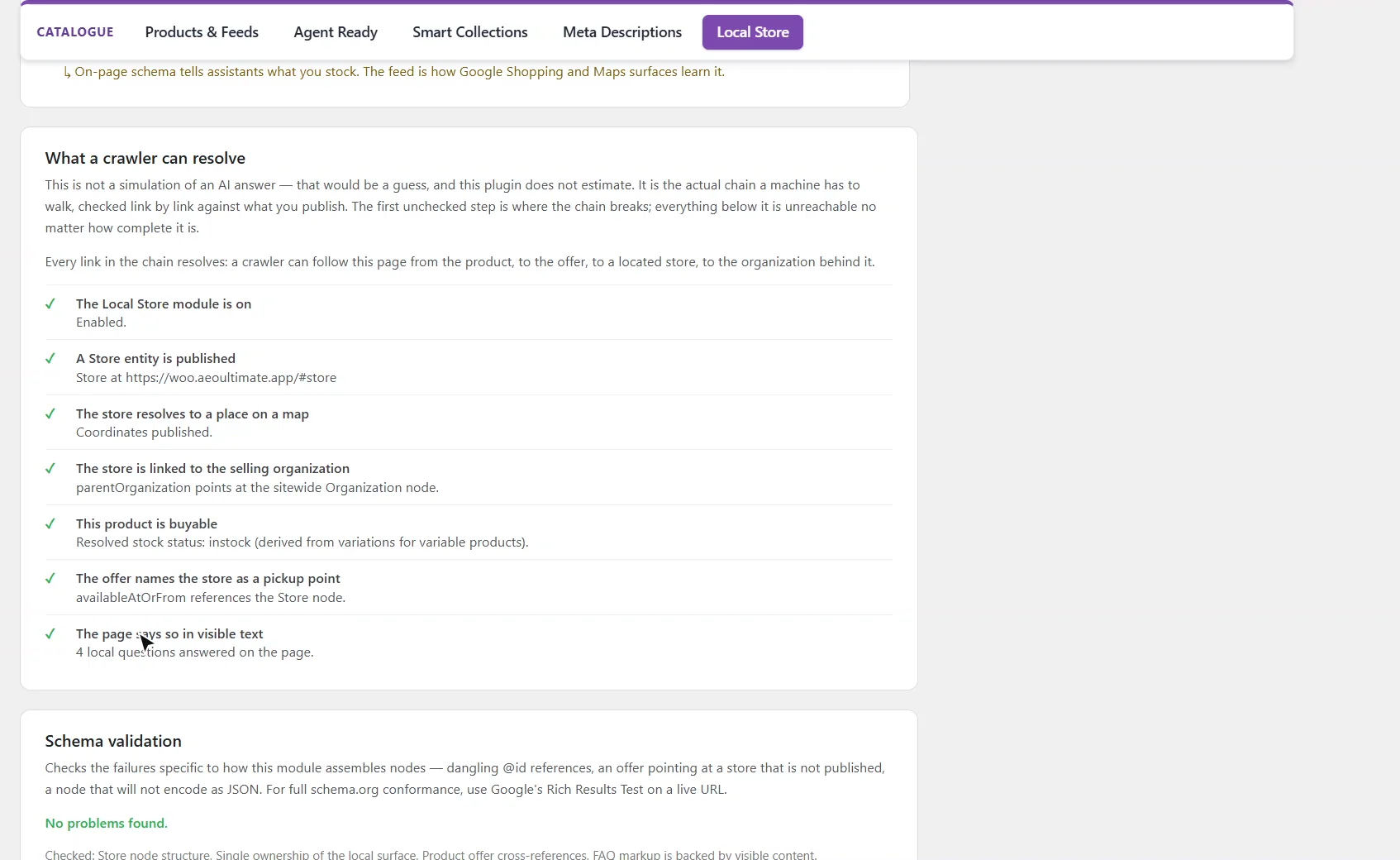
Local Audit grades how completely your store is described for machines, up from fifty-five to ninety-five percent here. Then it walks the actual chain a crawler follows, link by link, and the first unchecked step is where it breaks. Now every step resolves.
3:17 Next: Smart Collections
That's Local Store: turning "near me" into an answer that names your shop. Next, Smart Collections.
How do I set up local business schema in WooCommerce?
Turn on the Local Store module under AEO Ultimate → Modules, then open AEO Ultimate → Catalogue → Local Store. Nothing is published until you switch on Publish local business schema for this store. The address is seeded from your WooCommerce store address, and street, city and country are all required. If you use WooCommerce Point of Sale, the details you entered there are found and can be copied into empty fields, and the page warns you when the two addresses do not look like the same place.
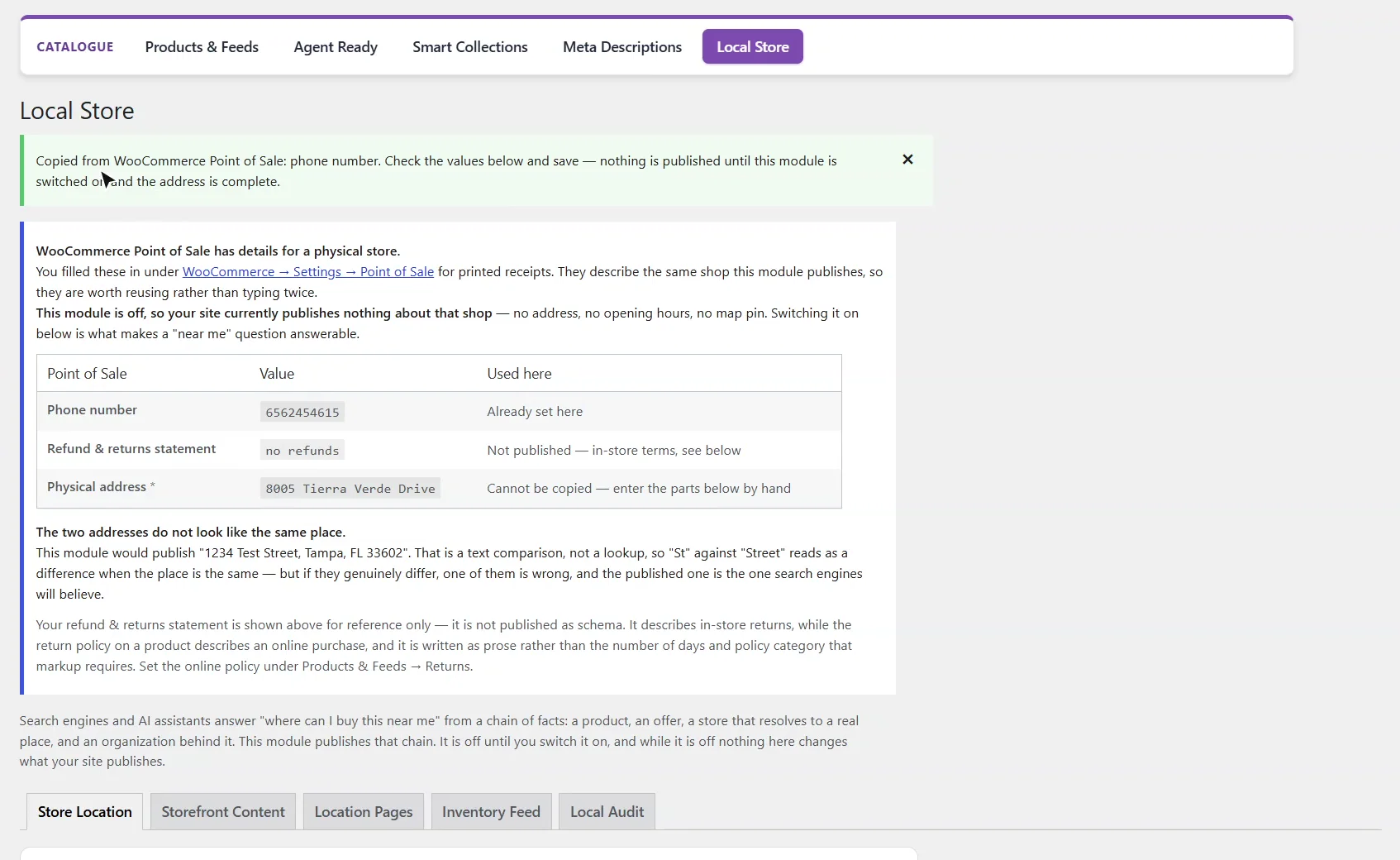
Pick the most specific business type you can, and add your coordinates from any map. Nothing is looked up for you, and an out-of-range value is discarded rather than corrected, because a plausible wrong coordinate publishes your shop in the wrong place.
Why do opening hours matter for AI search?
“Is it open now” is one of the most common questions people ask an assistant, and WooCommerce has no opening hours of its own. Set them per day, as open 24/7, or choose not to publish them. They are published as openingHoursSpecification on the Store node.
How do my products link to my shop?
Through in-store pickup. With it on, in-stock products publish availableAtOrFrom pointing at your Store node, including every variant offer; out-of-stock products never do. Add a pickup lead time and instructions that say what the customer does, because specifics are what get quoted back in an answer. Curbside collection and local delivery are optional extras.
The service area is published as areaServed. It can be read from your WooCommerce shipping zones, so it stays true as they change, or set as a radius around the store (which needs coordinates), or entered by hand.
What do shoppers see on the product page?
The Storefront Content tab decides that. Answer engines check schema against the page, and Google requires marked-up FAQs to be visible, so the local FAQ is only marked up when it is shown. Each piece can also be placed with a shortcode: [aeowc_local_availability], [aeowc_local_store] and [aeowc_local_faq].
On a product page, shoppers see pickup availability from live stock, worked out from the variations on a variable product, and today’s opening hours.
Below the product, a local FAQ answers whether it can be picked up, where the store is, when it is open and how pickup works.
Should I create a page for every city I serve?
Only where it is genuinely about that place. A page per city that only swaps the city name is a doorway page, and the penalty lands on your domain. Location Pages checks each city against your shipping zones, records any override you choose, and creates every page as a draft for you to read and edit. Nothing is published for you.
How does Google learn what is in stock at my shop?
Through a Merchant Center local inventory feed. The Inventory Feed tab serves one at a fixed URL that you register in Merchant Center as a scheduled fetch; it needs no API connection. It needs the store code from your Google Business Profile, and every product left out of the feed is counted with its reason.
How do I know the chain works?
Local Audit grades how completely your store is described for machines, then walks the actual chain a crawler follows: the module is on, a Store entity is published, it resolves to a place on a map, it is linked to the selling organization, the product is buyable, the offer names the store as a pickup point, and the page says so in visible text. The first unchecked step is where the chain breaks. Open How this score works to see each measure and what the score cannot tell you.
What should I set up next?
Next is Smart Collections.
All WooCommerce tutorials
- Getting started
- Product schema
- Agent Ready
- Agentic checkout
- Merchant Center
- Meta descriptions and AI enrichment
- Store trust and reviews
- Local Store
- Smart Collections
- Promotions and price rules
- AI citations and the crawler log
- AI Ready and the schema detector
- The RAG Engine (coming soon)
← Previous: Store trust and reviews
Next: Smart Collections →
Still stuck?
Message me directly — free tier included. Most replies land within the hour during Tampa working hours. Get support →