Docs / for WooCommerce / WooCommerce Google Merchant Center feed check
AEO Ultimate for WooCommerce
Check your WooCommerce Google feed before Google does
Gemini and Google AI Mode shop from Google Merchant Center. AEO Ultimate for WooCommerce checks what your feed plugin would send there, against Google’s product data rules and its AI checkout requirements, with no Google account needed. Watch the walkthrough, or read the guide below.
Read the transcript
0:00 Feed readiness, with no Google account
Gemini and Google AI Mode shop from Merchant Center. The Google Merchant Center tab checks what your feed plugin would send there, against Google's product rules and its AI checkout requirements. It runs your feed plugin's own code on your server, so you need no Google account, nothing is sent, and nothing is changed.
0:21 Store checks
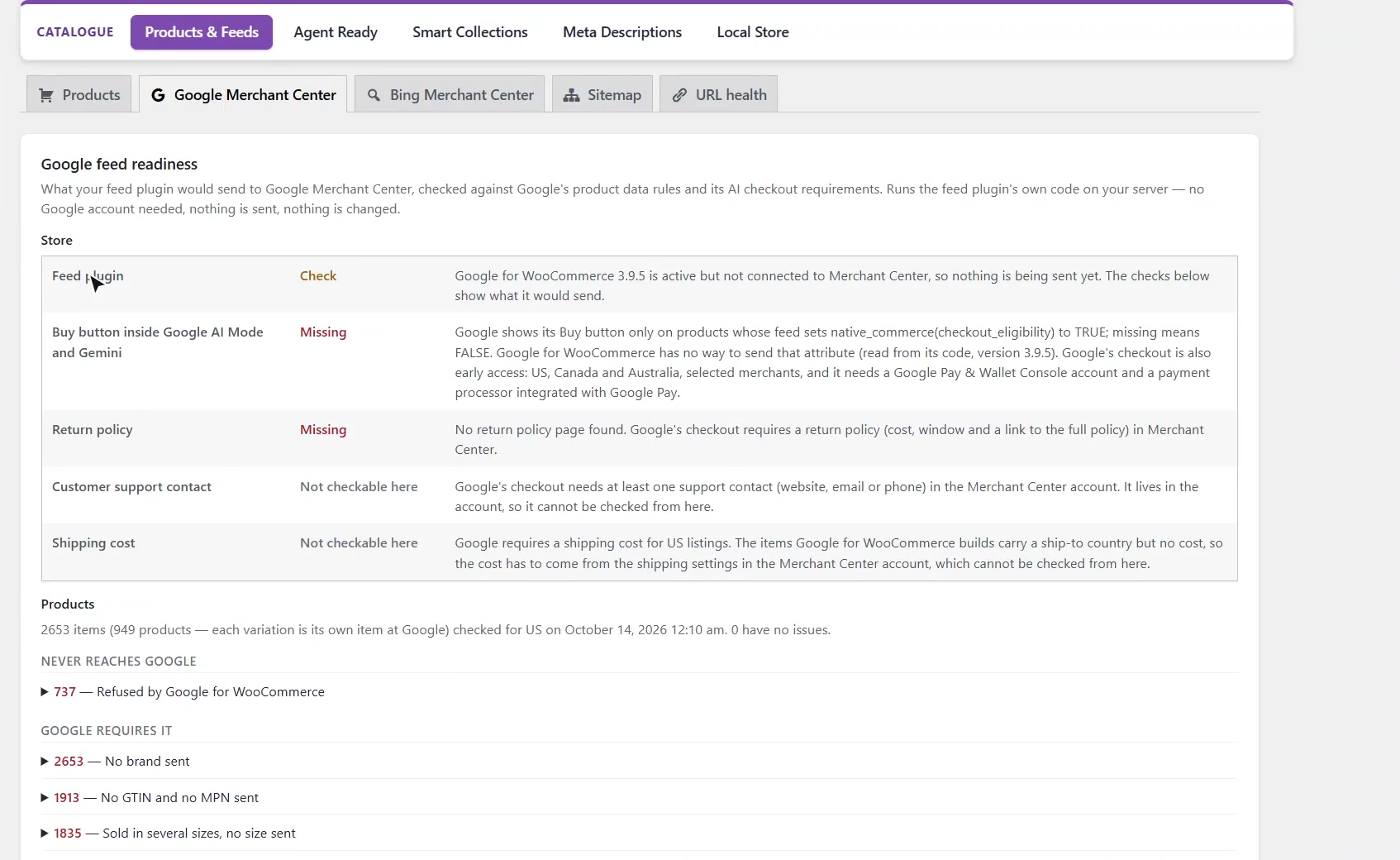
Store checks come first. Google for WooCommerce is installed here but not connected, so nothing is being sent yet. Google's Buy button inside AI Mode and Gemini needs a checkout flag that Google for WooCommerce can't send, and Google's checkout requires a return policy, which this store doesn't have.
0:43 Every item Google would receive
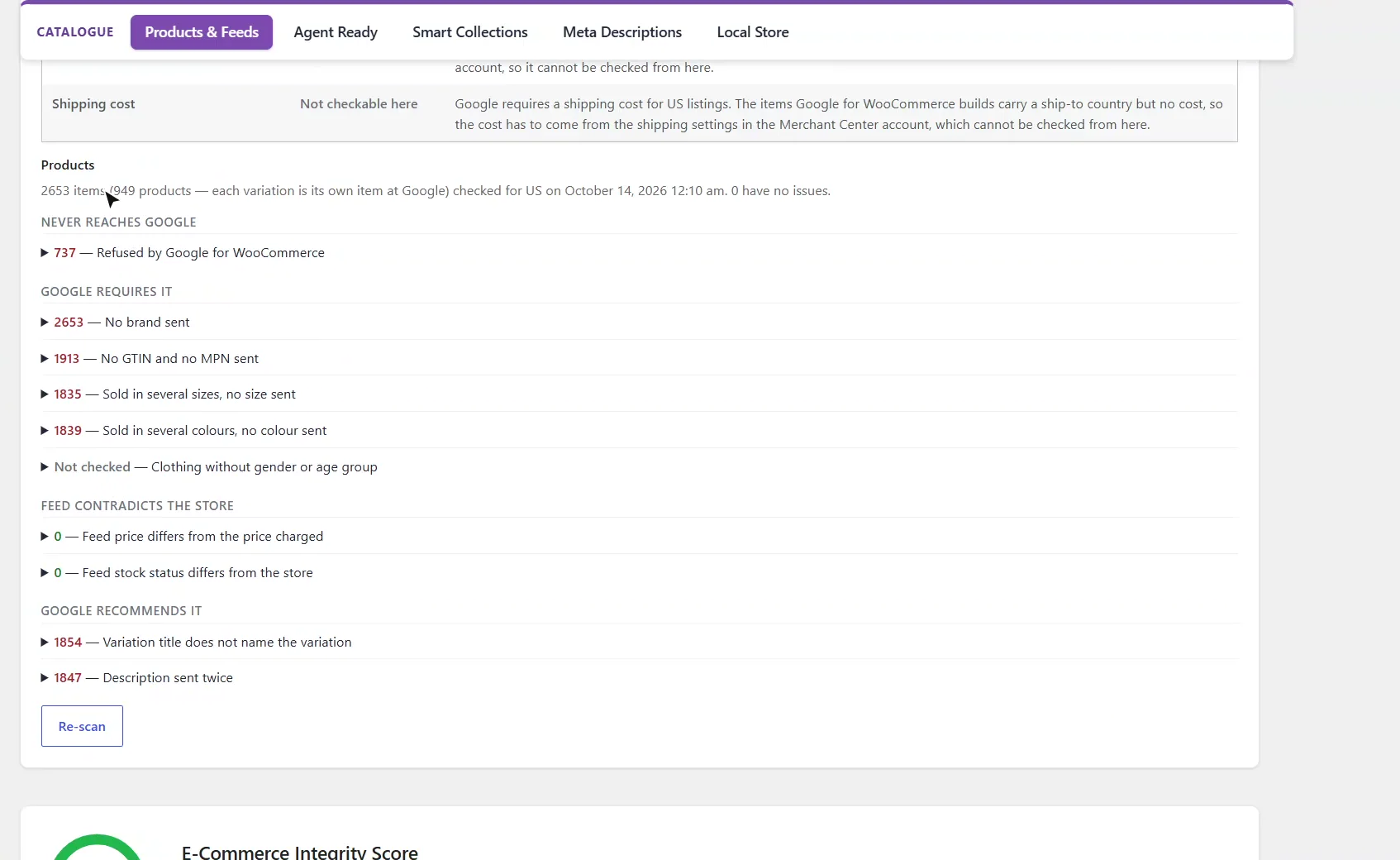
Then every product is checked as Google would receive it. Each variation is its own item at Google, so nine hundred and forty-nine products become two thousand six hundred and fifty-three items, grouped by how serious each problem is.
1:00 Never reaches Google
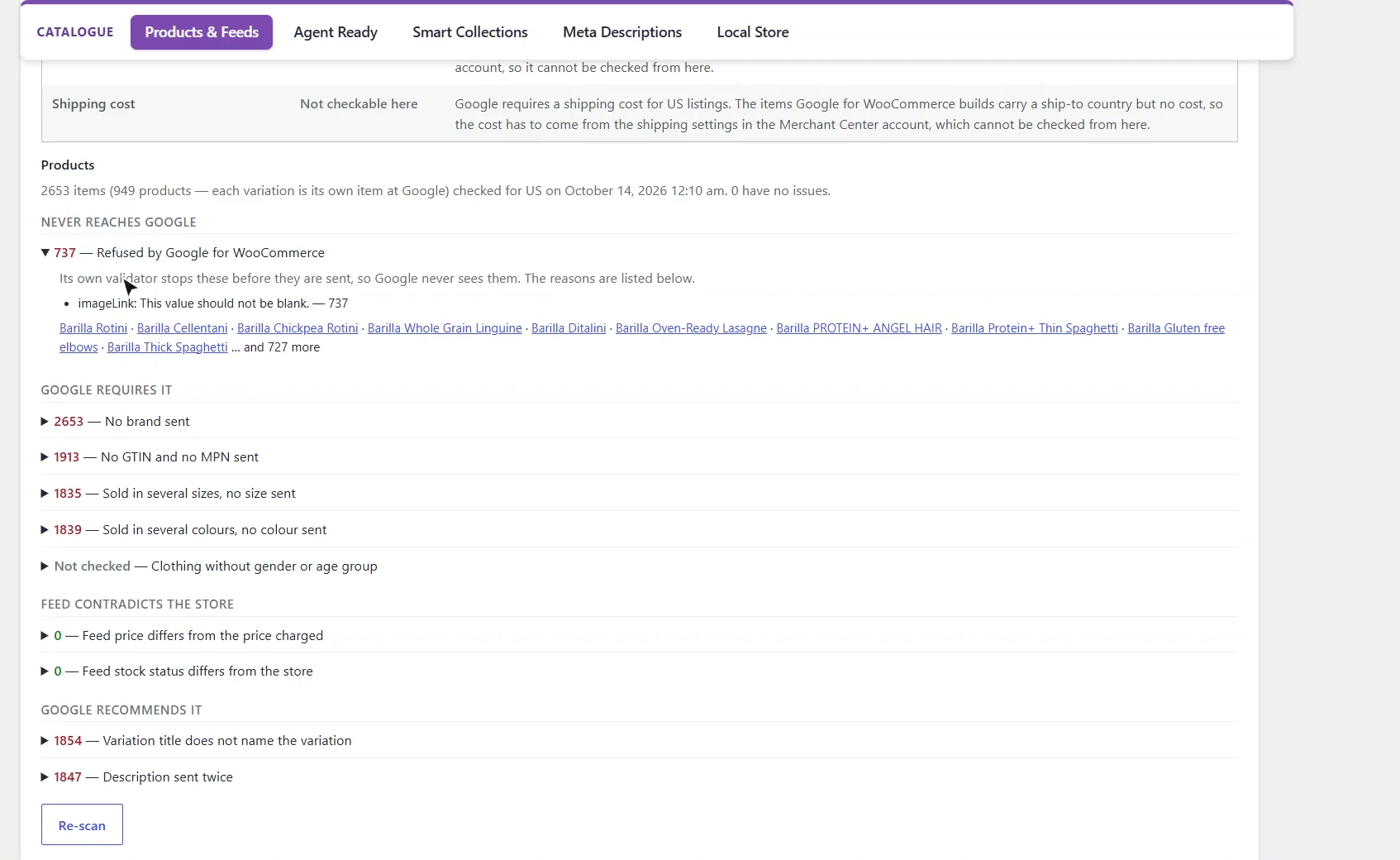
Seven hundred and thirty-seven items never reach Google at all. Google for WooCommerce's own validator refuses them, and opening the line shows why: they have no image. It names the products, too.
1:14 Fixes that cover thousands of items
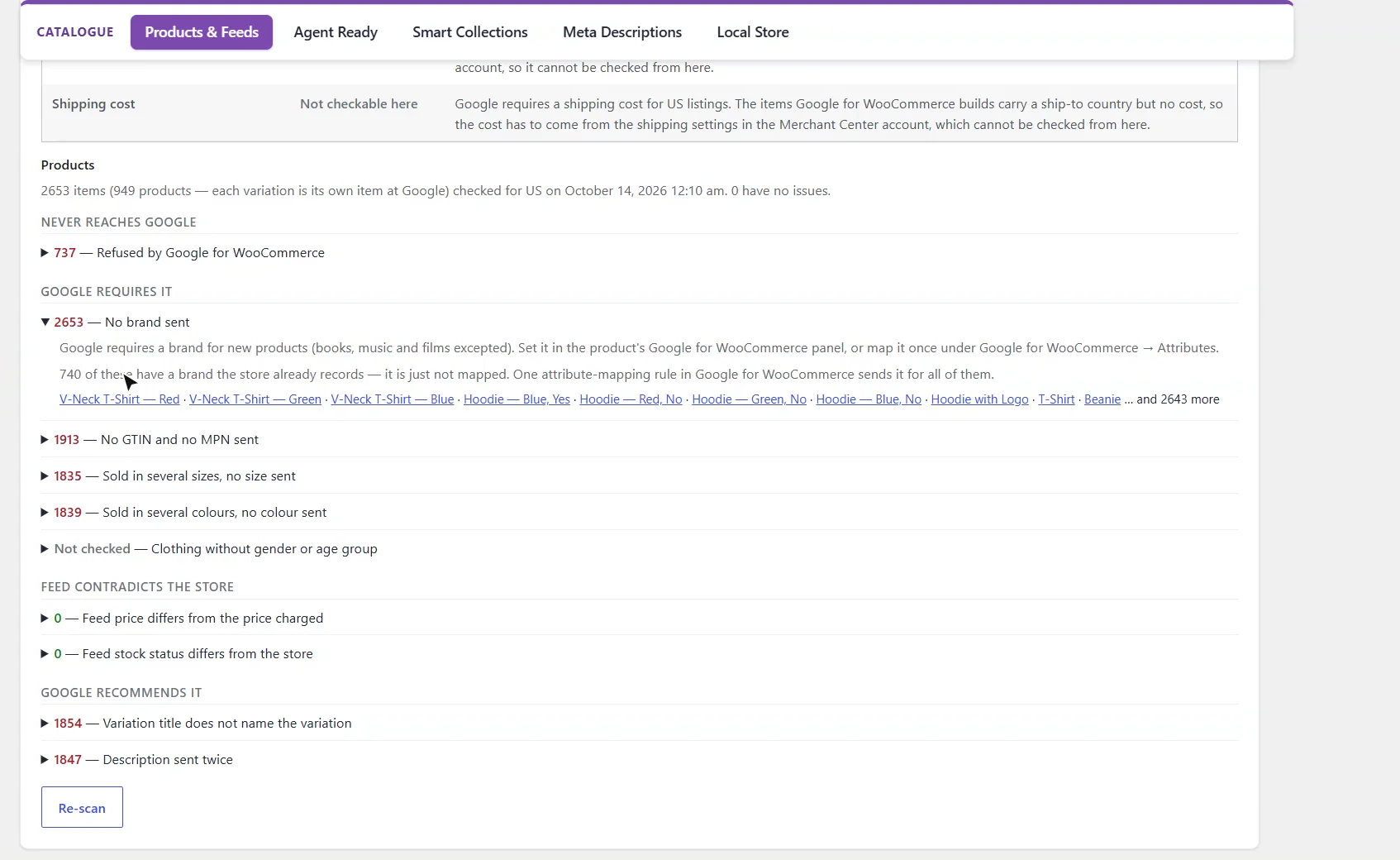
No item sends a brand, yet seven hundred and forty of these products already record one. It just isn't mapped, and one attribute rule in Google for WooCommerce sends it for all of them. Prices and stock in the feed match the store, so nothing contradicts what shoppers are charged.
1:33 Connect your own Merchant Center
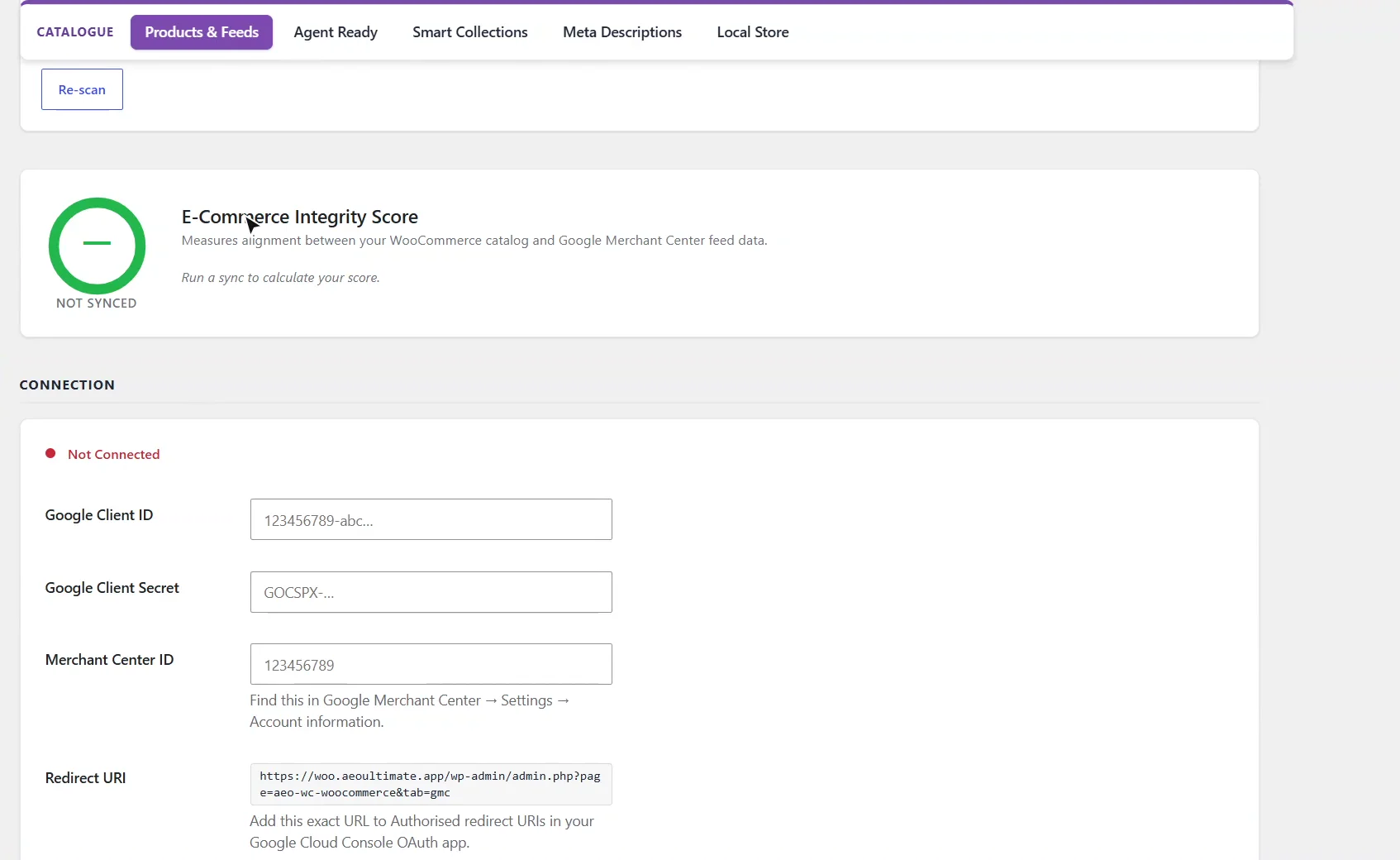
To sync with your own Merchant Center account, connect it below with a Google Cloud OAuth client and your Merchant Center ID. The E-Commerce Integrity Score then measures how well your catalogue and your Merchant Center feed agree.
1:48 Next: meta descriptions and enrichment
That's Merchant Center: see what Google would receive before it does. Next, meta descriptions and AI product enrichment.
How do I check my Google feed without a Merchant Center account?
Open AEO Ultimate → Catalogue → Products & Feeds and the Google Merchant Center tab. Google feed readiness runs your feed plugin’s own code on your server to see exactly what it would send, then checks it against Google’s rules. No Google account is needed, nothing is sent, and nothing is changed. Product-level checks need Google for WooCommerce to be active, because they run its code.
What does Google’s AI checkout need from my store?
The Store checks come first. They say whether your feed plugin is connected to Merchant Center, and check what Google’s Buy button inside AI Mode and Gemini needs: a feed that marks products as checkout-eligible (which Google for WooCommerce cannot send), a return policy, a customer support contact and a shipping cost. The last two live in your Merchant Center account, so the page says they cannot be checked from WordPress rather than guessing.
Why does Google count more items than I have products?
Each variation is its own item at Google, so the store in the video, with 949 products, sends 2,653 items. The results are grouped by how serious each problem is: items that never reach Google, things Google requires, places where the feed contradicts the store (price or stock), and things Google recommends. Re-scan checks the catalogue again after you fix something.
Why are some products never sent to Google?
Google for WooCommerce has its own validator that stops some items before they are sent, so Google never sees them. Open the Refused by Google for WooCommerce line to see the reasons and the products. On the store in the video, 737 items were refused because they have no image.
How do I fix missing brands in my Google feed?
Google requires a brand for new products. If your store already records a brand, the No brand sent line says how many items have one that is simply not mapped. One attribute-mapping rule under Google for WooCommerce → Attributes then sends it for all of them. The same view lists items with no GTIN or MPN, and variations sent without their size or colour.
How do I connect my own Merchant Center account?
Under Connection, enter the Client ID and Client Secret of a Google Cloud OAuth client and your Merchant Center ID (Merchant Center → Settings → Account information), and add the redirect URI shown to the OAuth client’s authorised redirect URIs. Once synced, the E-Commerce Integrity Score measures how well your WooCommerce catalogue and your Merchant Center feed agree.
What should I set up next?
Next is meta descriptions and AI product enrichment.
All WooCommerce tutorials
- Getting started
- Product schema
- Agent Ready
- Agentic checkout
- Merchant Center
- Meta descriptions and AI enrichment
- Store trust and reviews
- Local Store
- Smart Collections
- Promotions and price rules
- AI citations and the crawler log
- AI Ready and the schema detector
- The RAG Engine (coming soon)
← Previous: Agentic checkout
Still stuck?
Message me directly — free tier included. Most replies land within the hour during Tampa working hours. Get support →