Docs / for WooCommerce / WooCommerce product schema with AEO Ultimate
AEO Ultimate for WooCommerce
WooCommerce product schema
Product schema is the structured data search engines and AI assistants read on every product page. This guide shows what your catalogue actually publishes, where the gaps are, and how to add shipping and returns to every product. Watch the walkthrough, or read the guide below.
Read the transcript
0:00 What product schema is
Products and Feeds is where your product schema lives: the Product, Offer and breadcrumb structured data on every product page, plus the Merchant Center feeds built from the same data. Price, stock and shipping are read live from WooCommerce, so the schema always matches what the shopper sees.
0:20 What your catalogue actually publishes
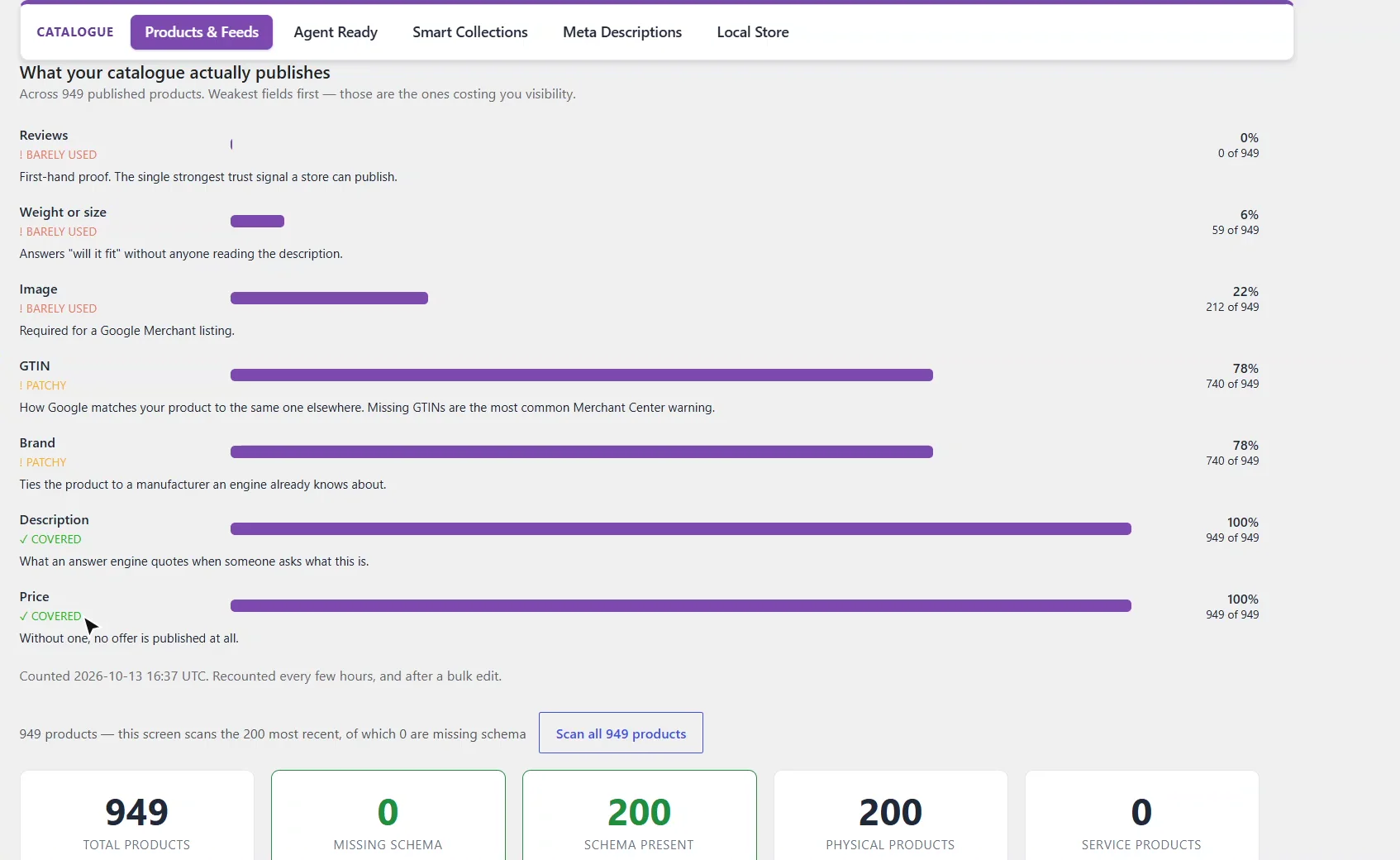
What your catalogue actually publishes shows each field across all nine hundred and forty-nine products, weakest first. Here, no product has reviews, only about a fifth have an image, and seventy-eight percent carry a GTIN and a brand. Description and price are covered everywhere.
0:41 Catalogue issues, with no AI and no cost
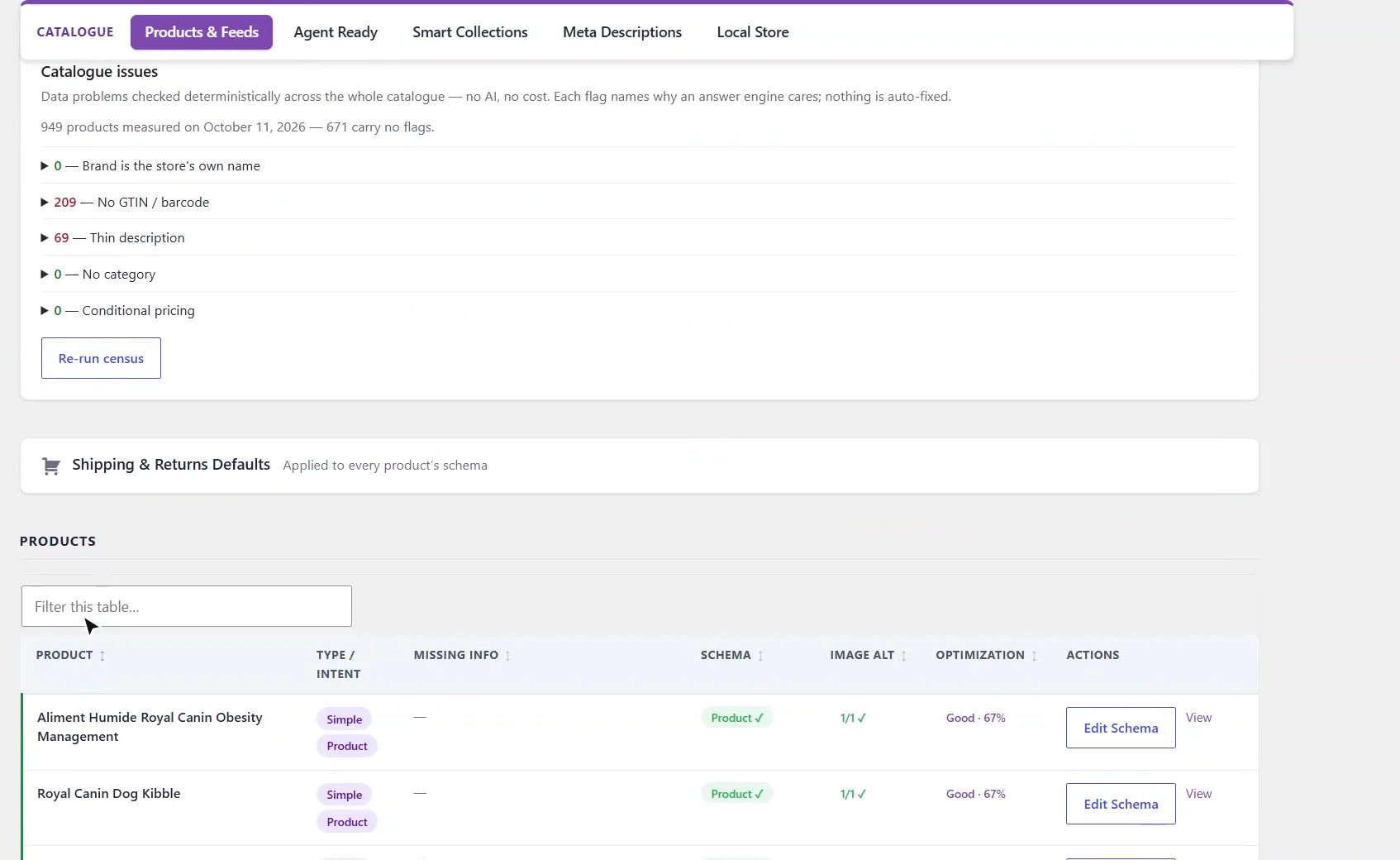
Catalogue issues checks the whole catalogue with no AI and at no cost. Two hundred and nine products have no GTIN, and sixty-nine have thin descriptions. Each flag says why it matters to an answer engine, and nothing is changed for you.
0:58 Schema status
Every product scanned here publishes its Product schema, so missing schema reads zero. Scan all products counts the whole catalogue, not just the two hundred most recent.
1:10 Shipping and returns in your schema
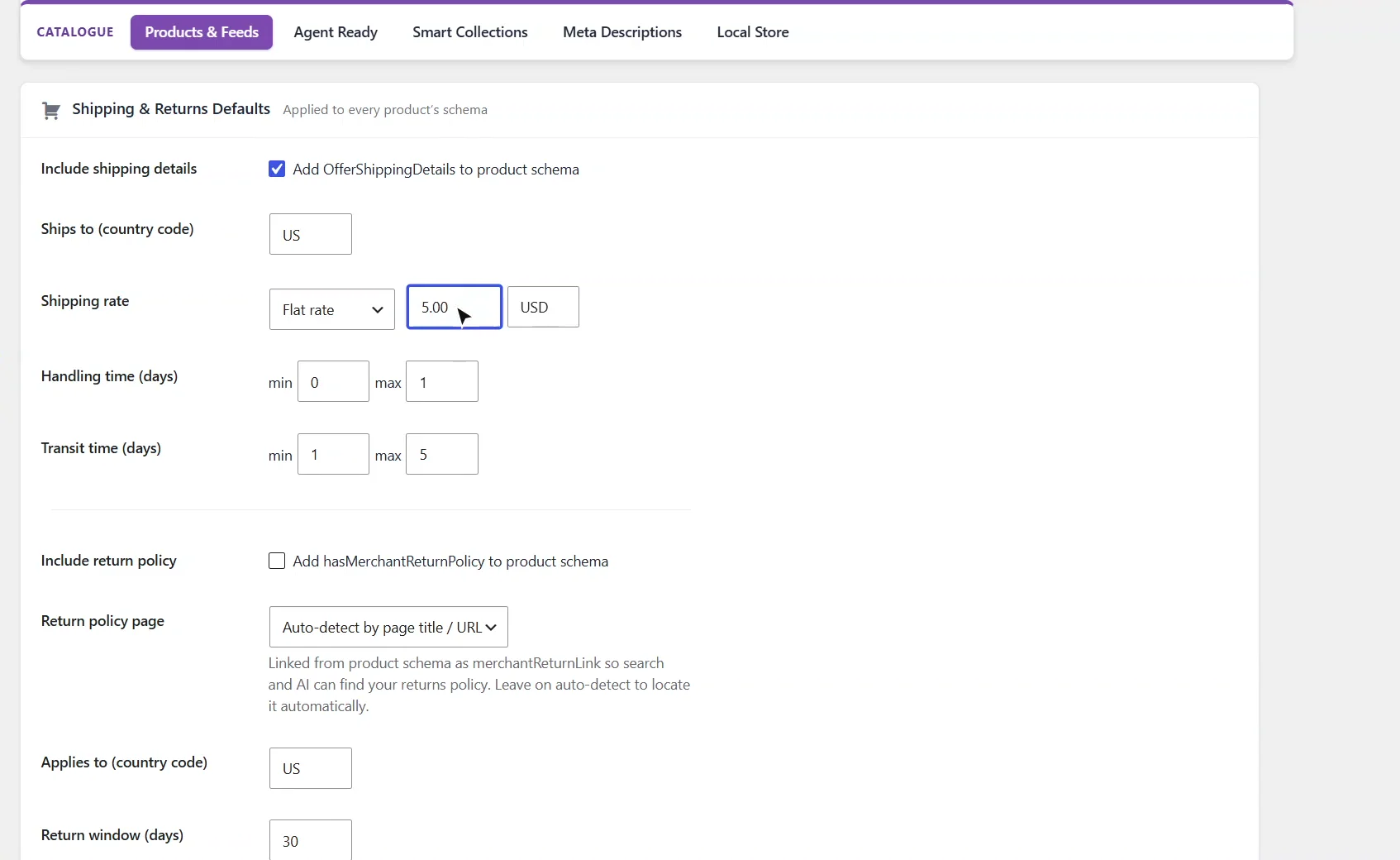
Shipping and Returns Defaults puts delivery and returns into your product schema. Tick Include shipping details. Costs come from your WooCommerce shipping zones, or a flat rate you enter here, plus the handling and transit days WooCommerce has no field for. Tick Include return policy, and every product links to your returns page. Then save.
1:36 Every product, one row
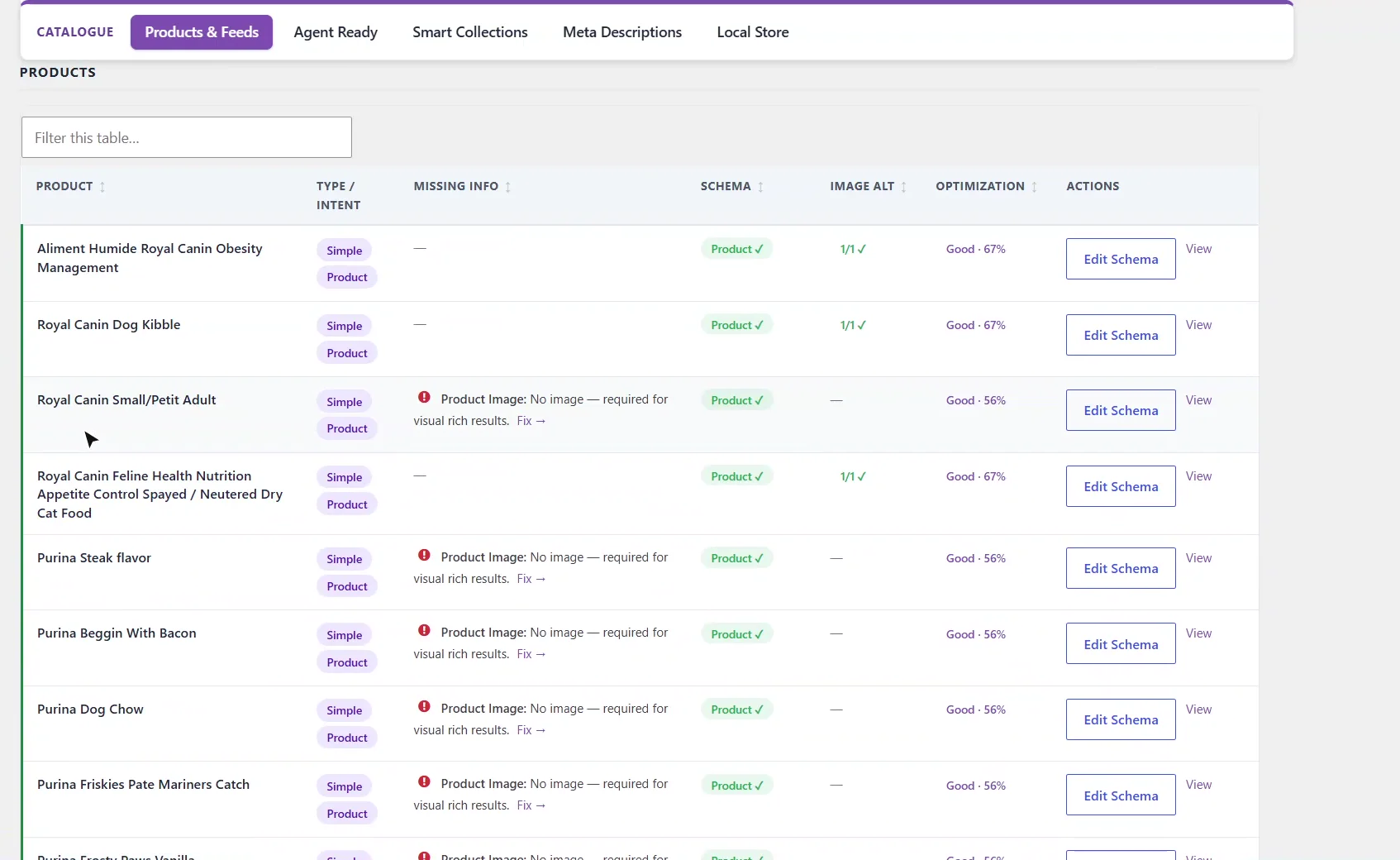
Below, every product gets a row with its schema status, anything missing, like an image, and an optimization score. Edit Schema adds facts your product data lacks, such as a brand, to that product's schema.
1:51 Next: Agent Ready
That's product schema: complete fields, no gaps, and one source of truth for search engines and AI. Next, Agent Ready shows your store the way an AI shopping agent sees it.
Where does my product schema come from?
Open AEO Ultimate → Catalogue → Products & Feeds. Every product page publishes Product, Offer and breadcrumb structured data (JSON-LD), and the Google Merchant Center feeds are built from the same data. Price, stock and shipping are read live from WooCommerce, so the schema always matches what the shopper sees on the page.
How do I see which product fields are missing?
What your catalogue actually publishes shows each field across every published product, weakest first, because the weakest fields are the ones costing you visibility. Each field is marked Barely used, Patchy or Covered, with a line on why it matters. On the store in the video, no product has reviews, only about a fifth have an image, and 78% carry a GTIN and a brand, while description and price are covered everywhere.
What does Catalogue issues check?
Catalogue issues checks the whole catalogue for data problems with no AI and at no cost: products with no GTIN or barcode, thin descriptions, no category, a brand that is just the store’s own name, and conditional pricing. Expand a line to see the products behind it. Each flag says why it matters to an answer engine, and nothing is changed for you. Click Re-run census after you fix things.
How do I know every product publishes schema?
The status cards count total products, products missing schema, products with schema present, and how many are physical products or services. By default the screen scans the 200 most recent products; Scan all products counts the whole catalogue.
How do I add shipping and returns to product schema?
Open Shipping & Returns Defaults and tick Include shipping details. Shipping costs come from your WooCommerce shipping zones, or from a flat rate you enter here, plus handling and transit days, which WooCommerce has no field for. Tick Include return policy and every product links to your returns page as merchantReturnLink; leave the page on auto-detect to have it found for you, and set the return window, fees and method. Then click Save Defaults.
How do I fix schema for a single product?
The Products table gives every product a row with its type, its schema status, anything missing (such as a product image), its image alt text and an optimization score. Use Filter this table to find a product, and Edit Schema to add facts your product data lacks, such as a brand, to that product’s schema.
What should I set up next?
Next is Agent Ready, which shows your store the way an AI shopping agent sees it.
All WooCommerce tutorials
- Getting started
- Product schema
- Agent Ready
- Agentic checkout
- Merchant Center
- Meta descriptions and AI enrichment
- Store trust and reviews
- Local Store
- Smart Collections
- Promotions and price rules
- AI citations and the crawler log
- AI Ready and the schema detector
- The RAG Engine (coming soon)
← Previous: Getting started
Next: Agent Ready →
Still stuck?
Message me directly — free tier included. Most replies land within the hour during Tampa working hours. Get support →