Docs / for WordPress / Social Graph: Open Graph tags and social share images for WordPress
AEO Ultimate for WordPress
Social Graph: your share cards
Social Graph controls the title, description and image that appear when a page is shared on social media or linked by an AI assistant. It checks every page, flags what’s missing, and lets you fix each one with a live preview. Watch the two-minute walkthrough, or read the guide below.
Read the transcript
0:00 What Social Graph does, and why it matters for AEO
Social Graph controls how every page looks when it's shared or linked: the title, description and image in the preview card. That matters for answer engine optimization too. When ChatGPT, Perplexity or Google's AI Overviews link to your page, the link preview is often built from these same Open Graph tags. A clear one-line description is text an engine can quote, and a real screenshot gives the citation an image instead of a blank box.
0:30 Page coverage: what's missing on each page
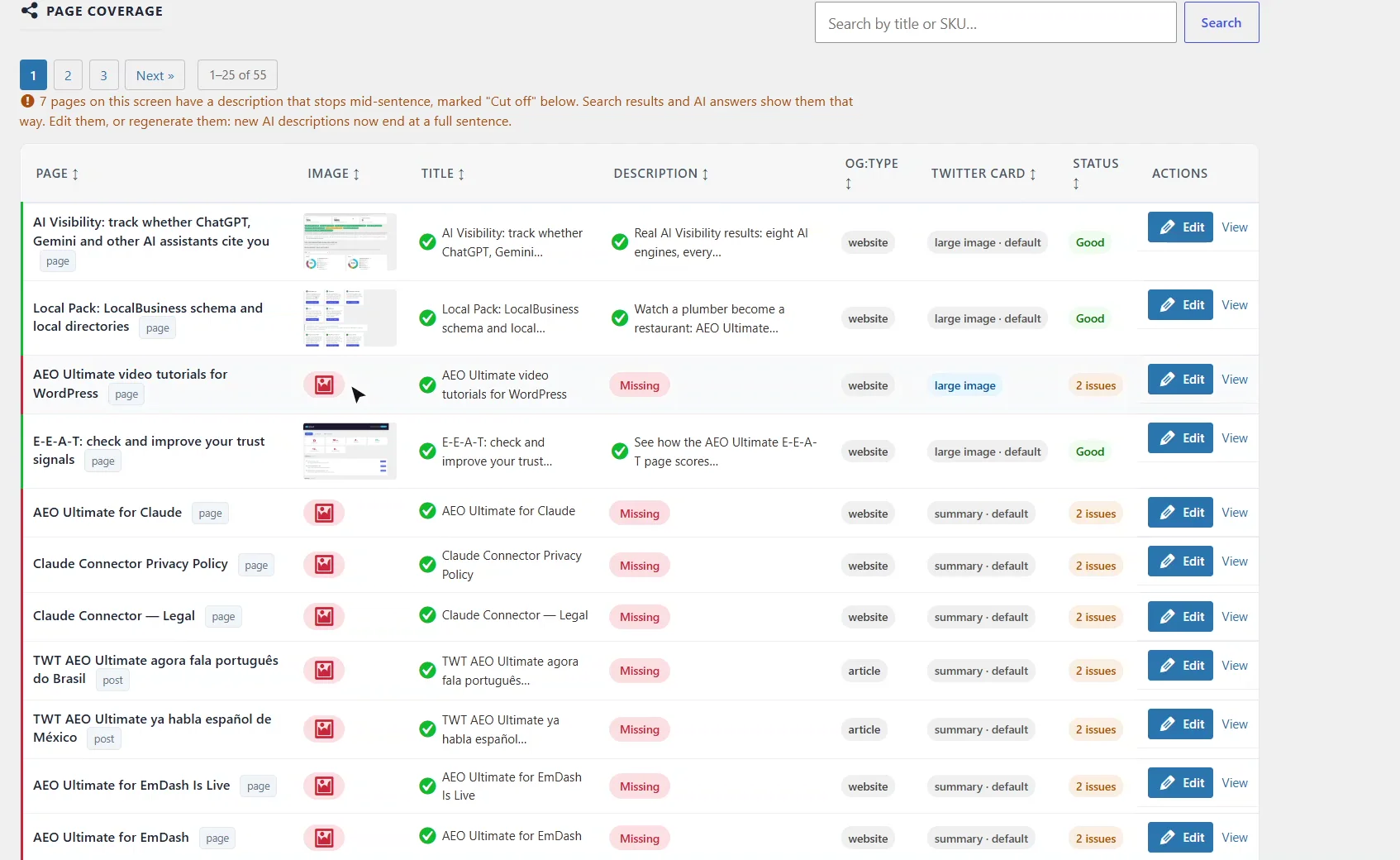
The table checks every page: share image, title, description, page type and X card. Anything missing is flagged in red, and descriptions that stop mid-sentence are marked Cut off, because search results and AI answers show them exactly that way.
0:48 Filling gaps in bulk, and your X and LinkedIn accounts
To fill gaps in bulk, reuse your existing meta descriptions for free, or let AI write share-friendly ones; you confirm the number of billed calls before anything runs. Your X handle and LinkedIn page are set once, at the top.
1:03 Editing one page's share card
Here's our video tutorials page, missing both its description and its image. Click Edit. First, pick a social image from the Media Library; 1200 by 630 pixels works everywhere, or generate one with AI. The image label fills in from the image's alt text, so the picture is described for search engines and screen readers too.
1:27 Description and live preview
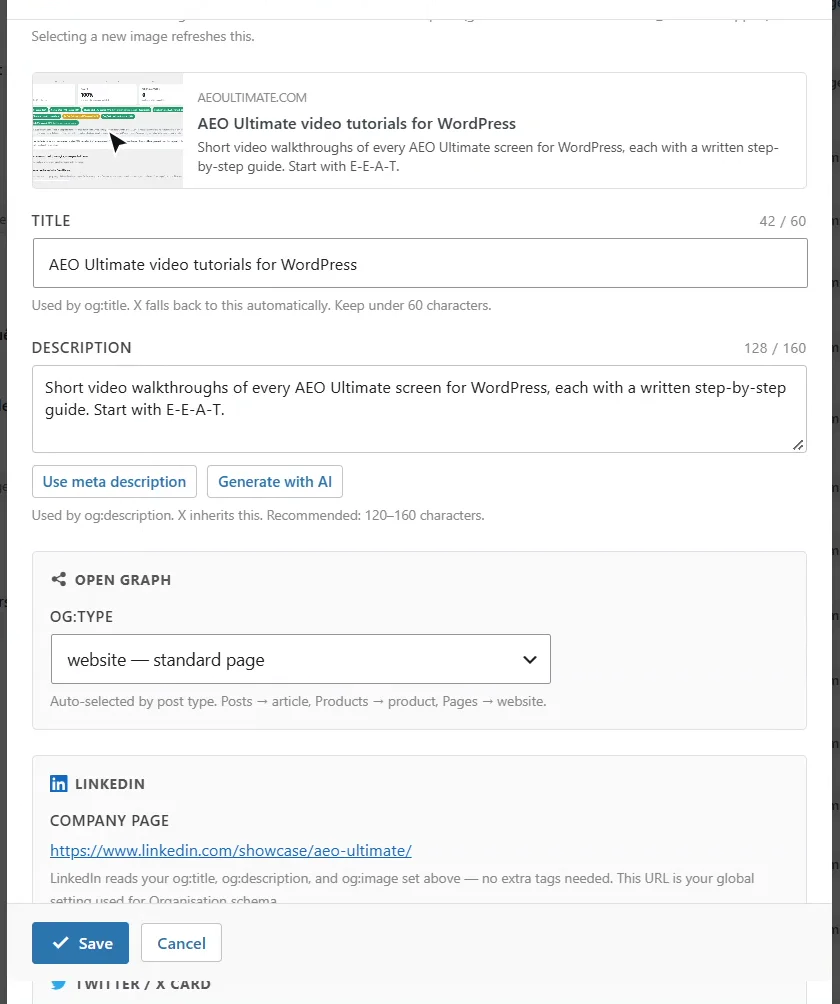
Next, the description. This page already has a meta description, so one click copies it in; or Generate with AI writes a share-friendly one. The preview above updates as you go, so you see exactly what people will see. Then save.
1:44 The updated page
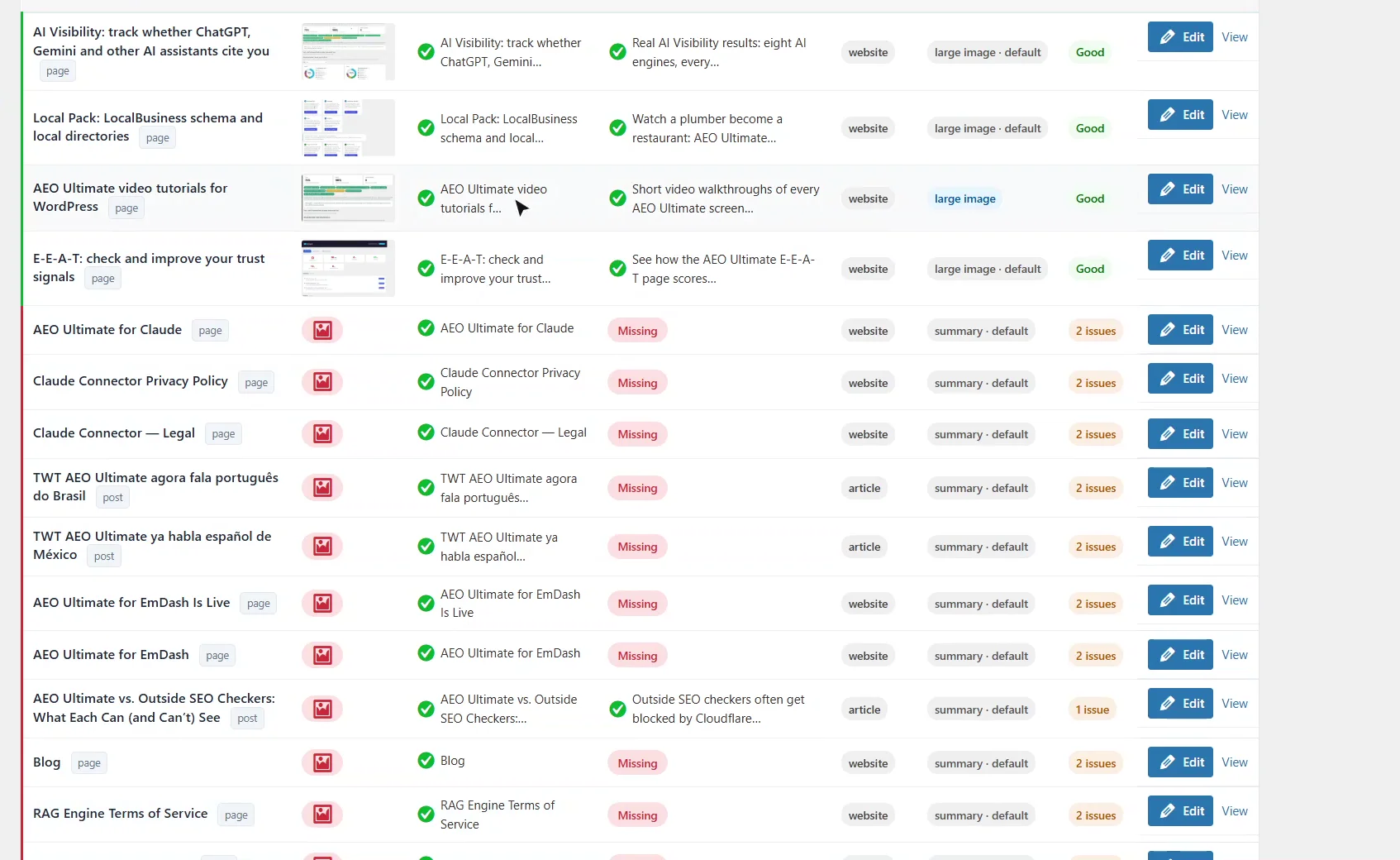
The row updates straight away, with its image and description in place. Start with the pages you most want shared and cited: your home page, your main services or products, and your best guides. Thanks for watching.
Why do share cards matter for AEO?
Open Graph tags (og:title, og:description, og:image) and X card tags decide what a link preview looks like on Facebook, LinkedIn, X and Slack. When ChatGPT, Perplexity or Google’s AI Overviews link to your page, the link preview is often built from the same tags. A clear one-line description is text an answer engine can quote, and a real screenshot gives the citation an image instead of a blank box.
What does the coverage table show?
Open TWT AEO → Social Graph. Every page gets a row with its share image, title, description, Open Graph type, X card and a status. Anything missing is flagged in red. Descriptions that stop mid-sentence are marked Cut off, because search results and AI answers show them exactly that way.
Can I fill missing descriptions in bulk?
Yes. Use existing meta descriptions copies the meta descriptions you already have into every page that’s missing a social description, free and instantly. Generate social-friendly with AI writes share-friendly copy on your own AI key; it runs in the background and asks you to confirm the number of billed calls before it starts. Your X @handle and LinkedIn company page are set once, at the top of the screen.
How do I fix one page’s share card?
Click Edit on the page’s row. Choose a Social Image from the Media Library (1200 × 630 pixels works everywhere), or generate one with AI if an OpenAI key is set up. The Image Label fills in from the image’s alt text, so the picture is described for search engines and screen readers. If no image is set, the page’s featured image is used.
Then the Description: aim for 120 to 160 characters. Use meta description copies the page’s meta description in one click, and Generate with AI writes one for you. The share-card preview updates as you type. Click Save, and the row updates straight away.
Start with the pages that matter most
Your home page, your main services or products, and your best guides are the pages most likely to be shared and cited. Give each one a real image and a complete sentence for its description.
Something not adding up? See Troubleshooting or ask in the support forum.
Still stuck?
Message me directly — free tier included. Most replies land within the hour during Tampa working hours. Get support →