Docs / for WordPress / Local Pack: LocalBusiness schema and local directories
AEO Ultimate for WordPress
Local Pack: schema and directories
Local Pack builds your LocalBusiness schema, checks your name, address and phone number against Google and Bing, and recommends the free directories that matter most for your industry. Watch the walkthrough, or read the guide below.
Read the transcript
0:00 What Local Pack does
Local Pack is where AEO Ultimate builds your LocalBusiness schema — the structured data that tells Google, Bing and AI assistants exactly who you are, where you are, and when you're open. It has four tabs: Business Profile, NAP Audit, Output Settings, and Entity Validation. Let's walk through each one.
0:23 Business name and business type
Start with your business name. Then pick your business type. Start typing — say, plumber — and choose the closest match. This sets your schema to the most specific type schema. org offers, so instead of a generic local business, search engines see a plumber. It also decides which directories AEO Ultimate recommends, which we'll see in a minute.
0:46 Contact details and NAP
Add your phone, email and a short description. Your name, address and phone number — your NAP — should match everywhere your business is listed, word for word. Search engines and AI assistants compare them across the web before they trust that your business is real.
1:04 Address, hours and service area
Next, your address and opening hours. Each hours row covers one or more days, and you can add more rows for split shifts or weekends. If you travel to your customers, list the cities you serve under Area Served. Then save.
1:20 NAP Audit: Google and Bing
The NAP Audit tab checks what Google and Bing currently show for your business and compares it with what you entered. For Google, you can search the Knowledge Graph with an API key, or connect your Google Business Profile directly. Each section explains how to get the key it needs.
1:38 Output Settings and schema preview
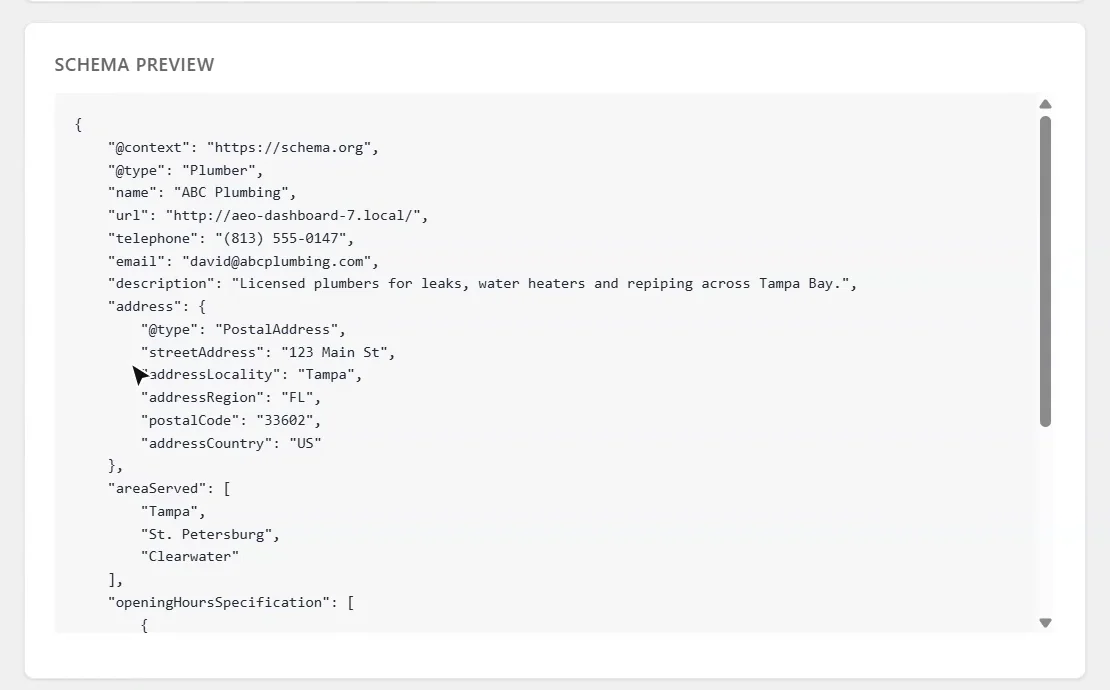
On Output Settings, choose where your schema appears. Front page only is the right choice for most businesses. Below that is a preview of the exact schema AEO Ultimate adds to your site. Notice the type is Plumber, with your address, phone and opening hours.
1:56 Entity Validation: directories for a plumber
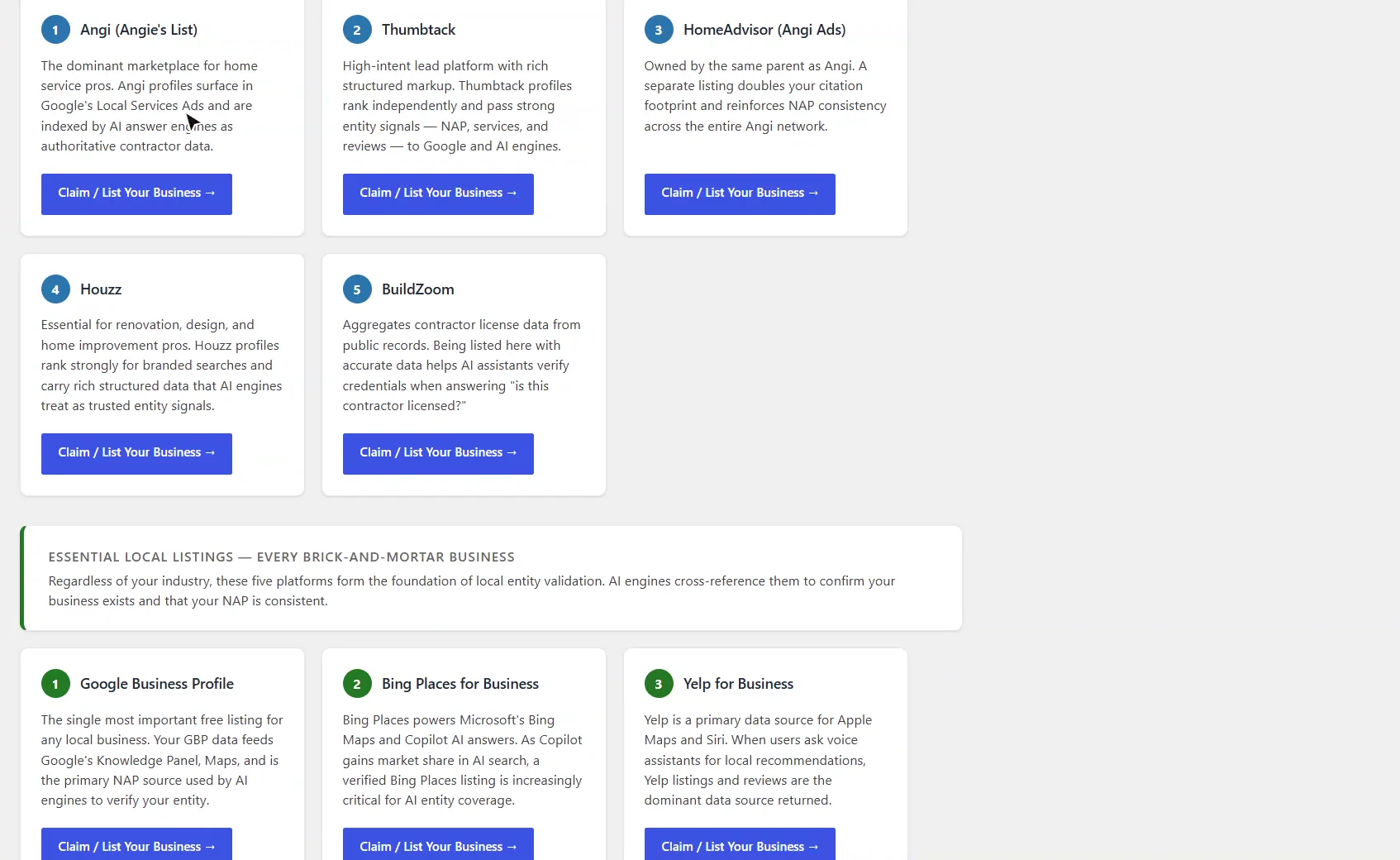
Now the part that's different for every business: Entity Validation. Based on your business type, AEO Ultimate recommends the five free directories that matter most in your industry. For a plumber, that's Angi, Thumbtack, HomeAdvisor, Houzz and BuildZoom.
2:14 Essential listings and review platforms
Below those are the essential listings every local business needs: Google Business Profile, Bing Places, Yelp, Apple Maps and the Better Business Bureau. Then come the review platforms that matter most for your type of business. Every card links straight to the sign-up page.
2:33 Switching the business type to Restaurant
Watch what happens when the business type changes. Back on Business Profile, let's switch this to a restaurant and save.
2:56 Entity Validation: directories for a restaurant
The recommendations change completely. A restaurant gets Yelp, TripAdvisor, OpenTable, Zomato and Foursquare, and the review platforms change to match. AEO Ultimate has directory sets for home services, restaurants, legal, healthcare, real estate, automotive, beauty and wellness, financial services, education, lodging and pet services.
3:21 Wrap-up
So set your real business type, claim the listings that fit, and keep your details identical everywhere. That consistency is what helps search engines and AI assistants trust your business enough to recommend it. Thanks for watching.
What does Local Pack do?
It adds LocalBusiness structured data (JSON-LD) to your site: the machine-readable version of who you are, where you are and when you’re open. Google, Bing and AI assistants use it to understand your business and to match it with what they find about you elsewhere. Find it under TWT AEO → Local Pack. It has four tabs: Business Profile, NAP Audit, Output Settings and Entity Validation.
What goes in the Business Profile?
Your business name, business type, phone, email, website, description, price range, address, map coordinates, Google Maps link, opening hours, logo, photo and the areas you serve. Only the business name is required, but every field you fill in becomes part of your schema.
Business type matters most. Start typing (for example “plumber” or “restaurant”) and pick the closest match. This sets your schema to the most specific schema.org type, so search engines see a Plumber or a Restaurant rather than a generic local business. It also decides which directories Entity Validation recommends.
Opening hours work in rows: each row covers one or more days with one open and close time. Add more rows for split shifts or weekend hours. If you travel to customers, list the cities, regions or states you cover under Area Served, separated by commas.
Keep your NAP identical everywhere
Your name, address and phone number should match your Google Business Profile and every directory listing exactly, down to “St” versus “Street”. Search engines and AI assistants compare them across the web before they trust that a business is real.
How does the NAP Audit work?
The NAP Audit tab looks up what Google and Bing currently show for your business and compares it with your Business Profile. For Google, choose either the Knowledge Graph API (needs a Google Cloud API key, no account sign-in) or a direct connection to your Google Business Profile (signs in with the Google account that manages your listing). The Bing check uses a Bing Maps API key. Each section has step-by-step instructions for getting its key.
Where does the schema appear?
On the Output Settings tab, choose front page only (recommended for most businesses), every page, or specific page IDs. Once your business name is saved, a Schema Preview shows the exact JSON-LD AEO Ultimate adds, so you can confirm the type, address, phone, hours and service area before anything goes live.
Which directories should my business be listed in?
Open the Entity Validation tab. Based on your business type, it recommends the five free directories that carry the most weight in your industry, then the essential listings every brick-and-mortar business needs (Google Business Profile, Bing Places, Yelp, Apple Maps and the Better Business Bureau), then the customer review platforms that fit your type of business. Every card links straight to the sign-up page.
| Business type | Recommended directories |
|---|---|
| Plumber (home services) | Angi, Thumbtack, HomeAdvisor, Houzz, BuildZoom |
| Restaurant | Yelp, TripAdvisor, OpenTable, Zomato, Foursquare |
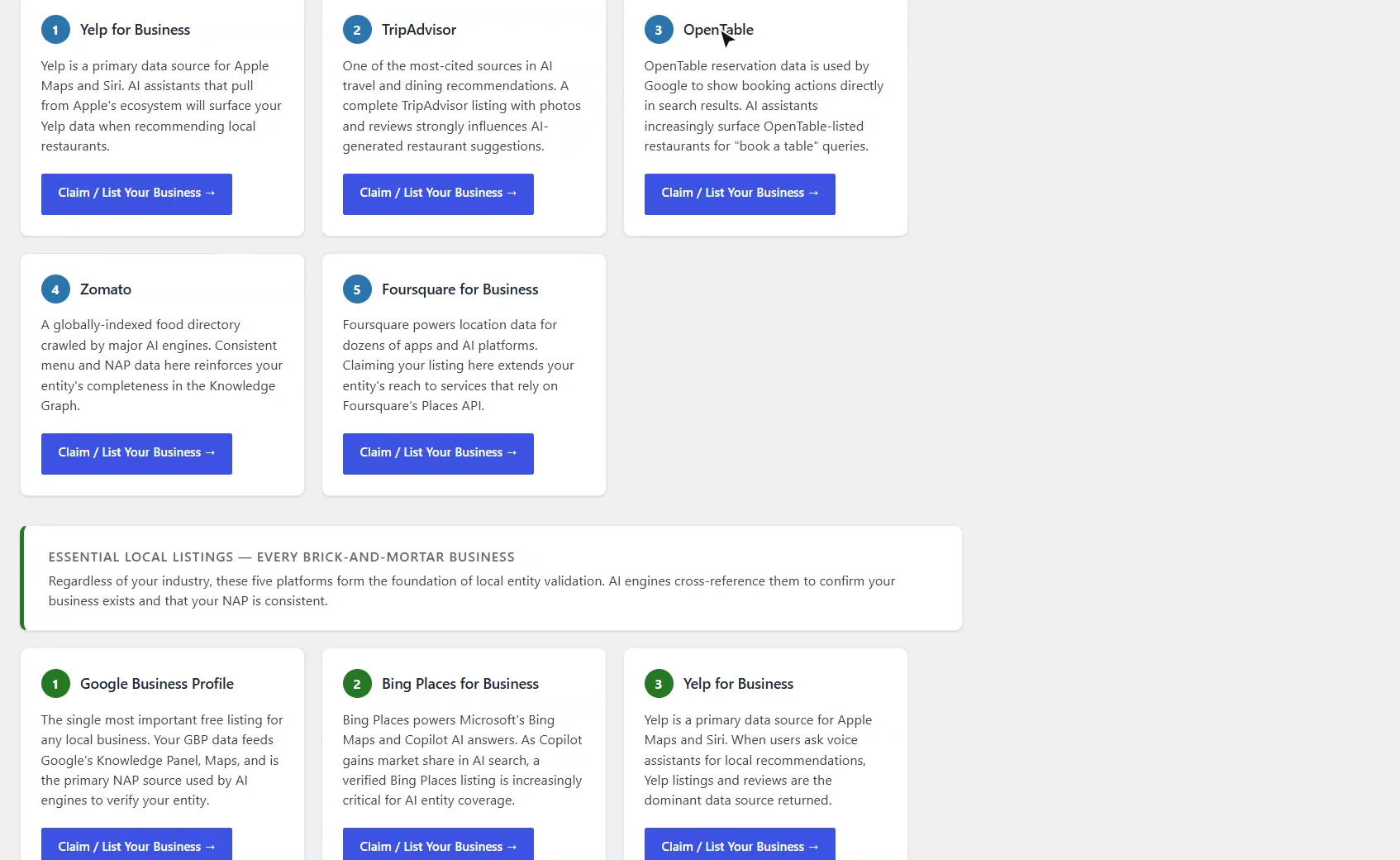
There are directory sets for home services, restaurants and food, legal, healthcare, real estate, automotive, beauty and wellness, financial services, education, lodging and pet services. If your business type doesn’t fall into one of them, you’ll see the essential listings and general review platforms instead.
Start with Google Business Profile
It applies to every local business and feeds Google Maps and the Knowledge Panel. Claim it first, then work through the directories for your industry, using exactly the same name, address and phone number each time.
Something not adding up? See Troubleshooting or ask in the support forum.
Still stuck?
Message me directly — free tier included. Most replies land within the hour during Tampa working hours. Get support →