Docs / for Shopify / Images, alt text and product FAQs for Shopify
AEO Ultimate for Shopify
Images and FAQs: give answer engines something to show and quote
Two pages in the Catalog group help answer engines show your products and quote them: Images, for product photos and their alt text, and FAQs, for the questions shoppers ask before they buy.
How do I find products with missing images or alt text?
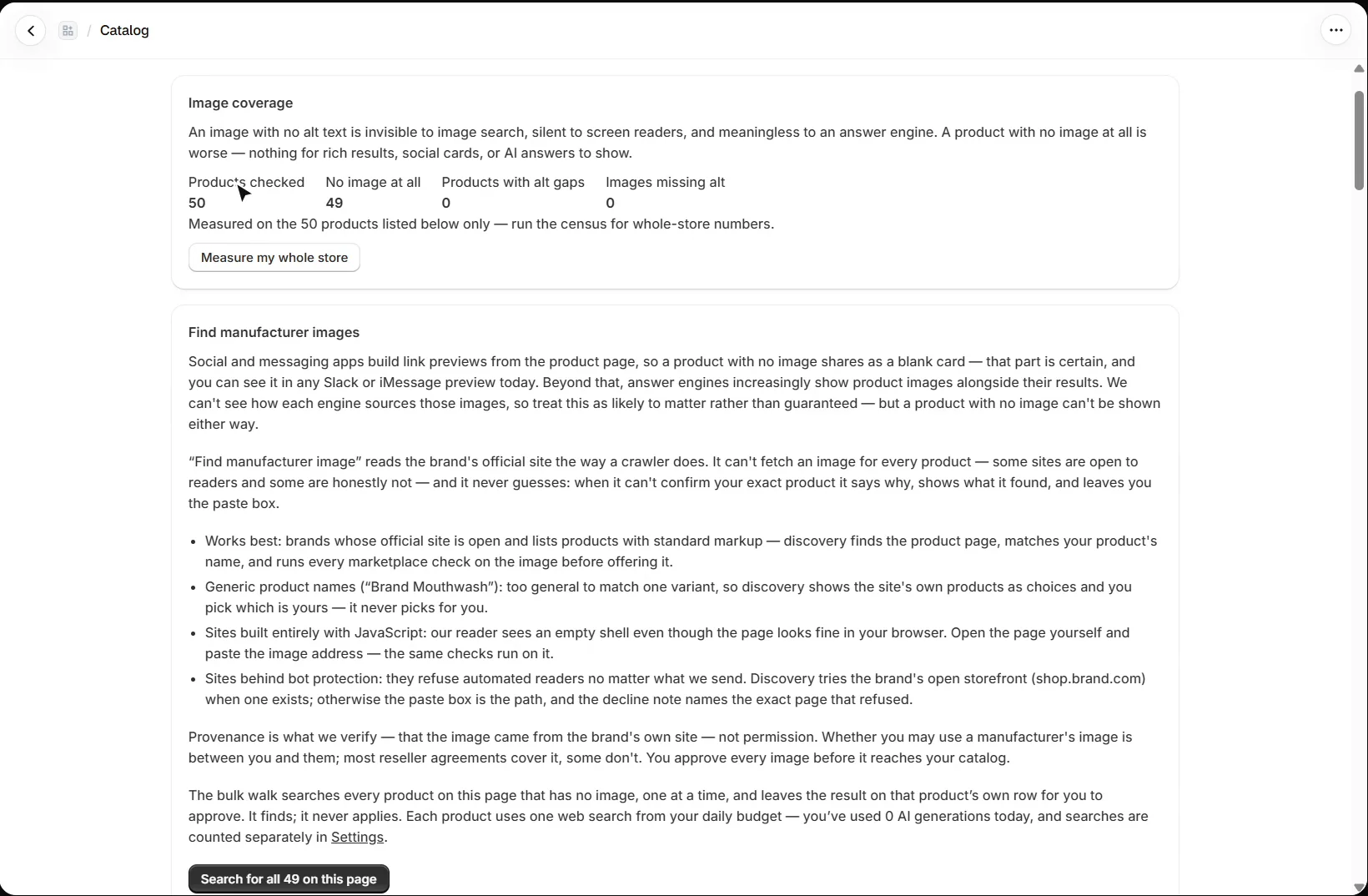
Open Catalog → Images. Image coverage counts products with no image at all, and images with no alt text, which image search, screen readers and AI answers cannot read. The counts cover the products listed on the page; Measure my whole store counts every active product, free on every plan.
How does Find manufacturer image work?
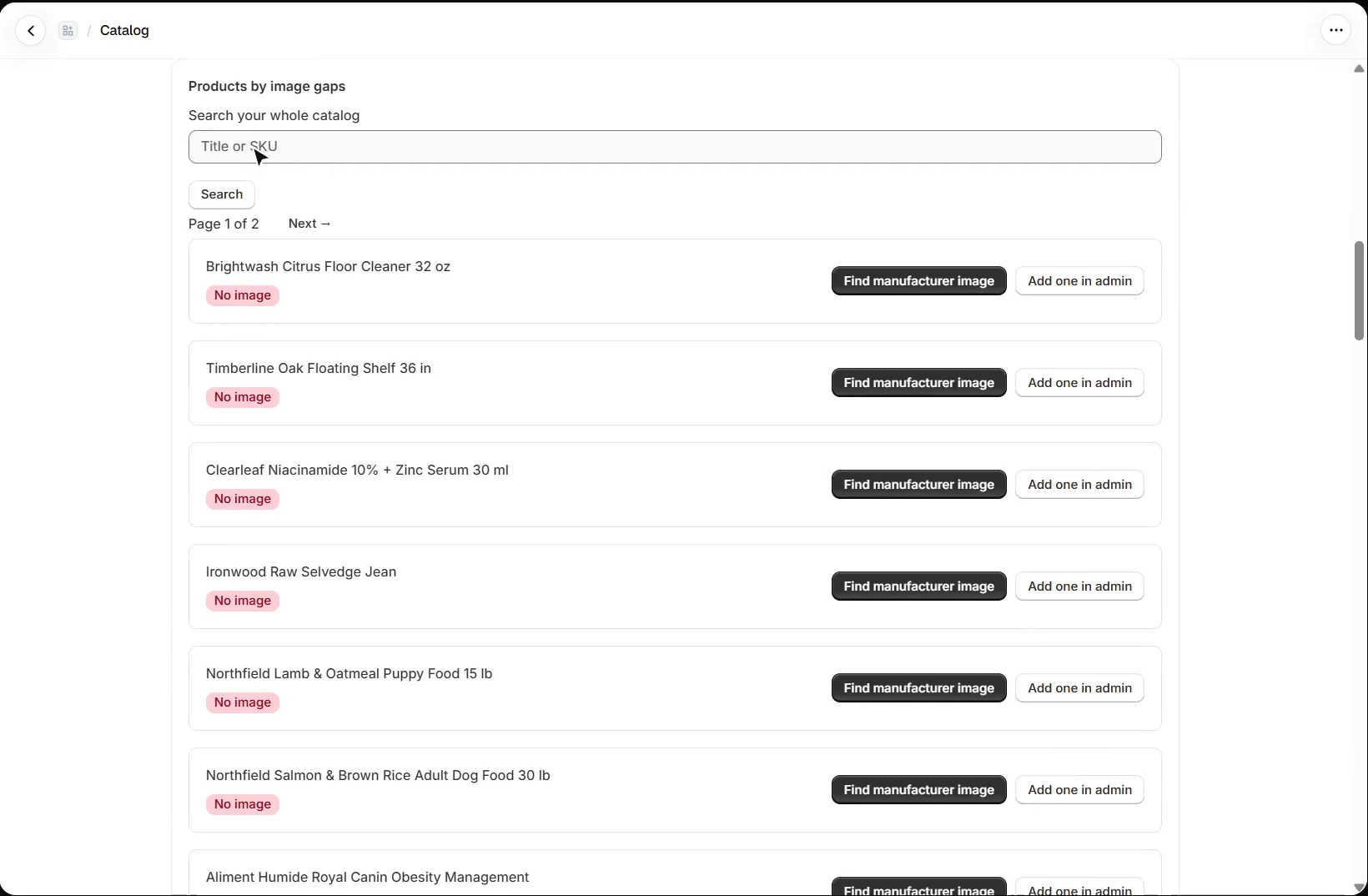
A product with no image shares as a blank card in link previews. Find manufacturer image reads the brand’s own official website for that exact product, the way a crawler does. It never guesses: when it cannot confirm your product it says why, shows what it found, and leaves you a box to paste an image address. For a generic product name it shows the site’s own products as choices, and you pick.
You approve every image, and it is added to the product, never replacing an image you already have. It checks where the image came from, not whether you may use it: that is between you and the manufacturer. On Mid you search one product at a time from its row; on Pro, one run searches every product on the page that has no image and leaves each result on its row for you to approve.
Can I import images from my supplier’s feed?
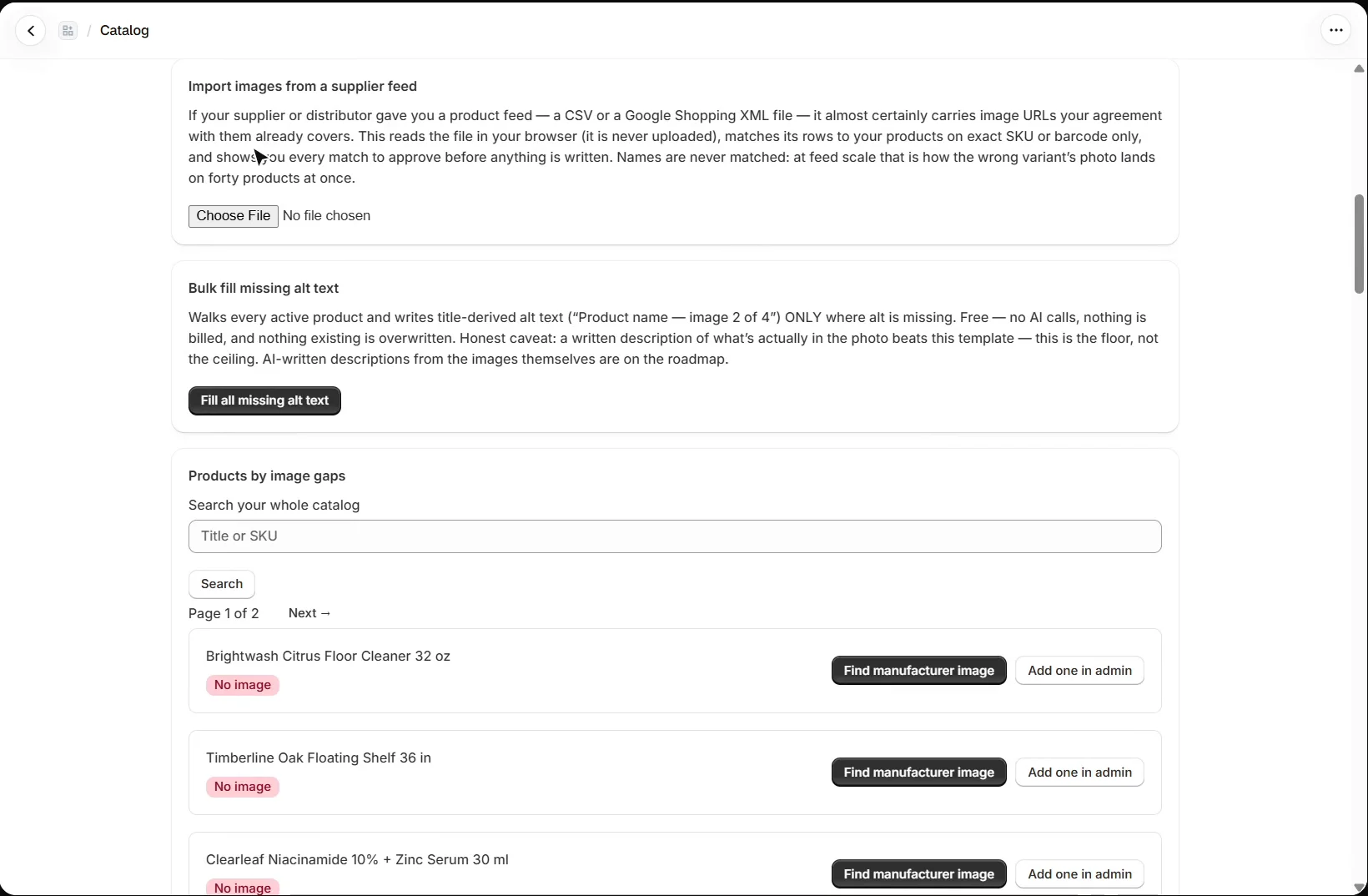
Yes. If your supplier or distributor gave you a product feed, as a CSV or a Google Shopping XML file, Import images from a supplier feed reads it in your browser (the file is never uploaded) and matches its rows to your products on exact SKU or barcode only, never on names. Every match is shown for you to approve before anything is written. Applying one product at a time is on Mid; several at once is on Pro.
How do I fill missing alt text?
On Mid, Fix alt text on a product’s row lets you describe each of its images. On Pro, Bulk fill missing alt text walks every active product and writes title-based alt text, such as “Product name — image 2 of 4”, only where alt is missing. It is free, makes no AI call and never overwrites existing alt text. A real description of what is in the photo is still better: this is the floor, not the ceiling.
How do product FAQs reach answer engines?
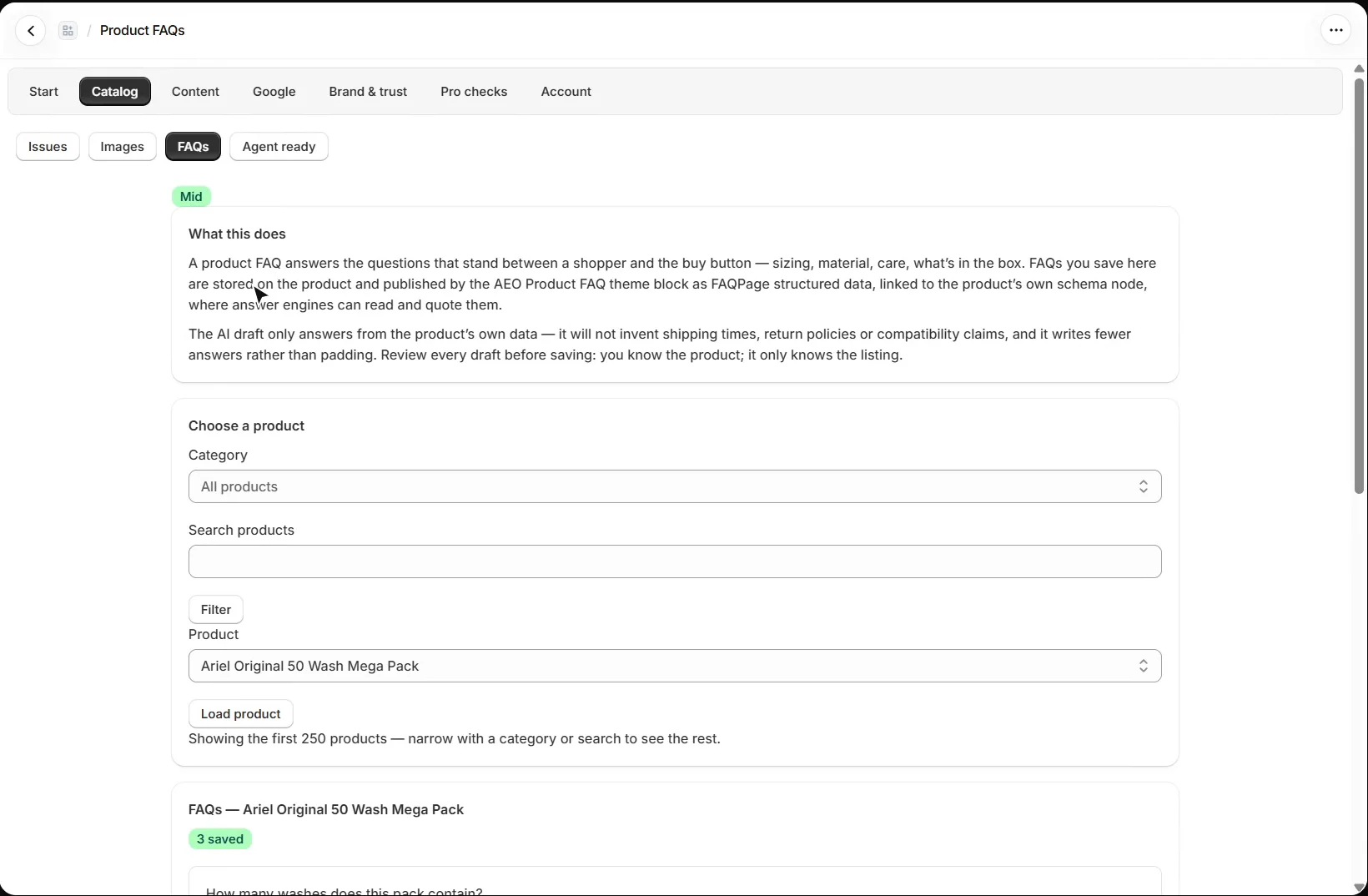
Open Catalog → FAQs (Mid plan) and pick a product. A product FAQ answers the questions that stand between a shopper and the buy button: sizing, material, care, what is in the box. FAQs you save are stored on the product and published by the AEO Product FAQ theme block as FAQPage structured data, linked to the product’s own schema, where answer engines can read and quote them. The block is added in the theme editor, as shown in the Product schema guide.
Can AI write the FAQs for me?
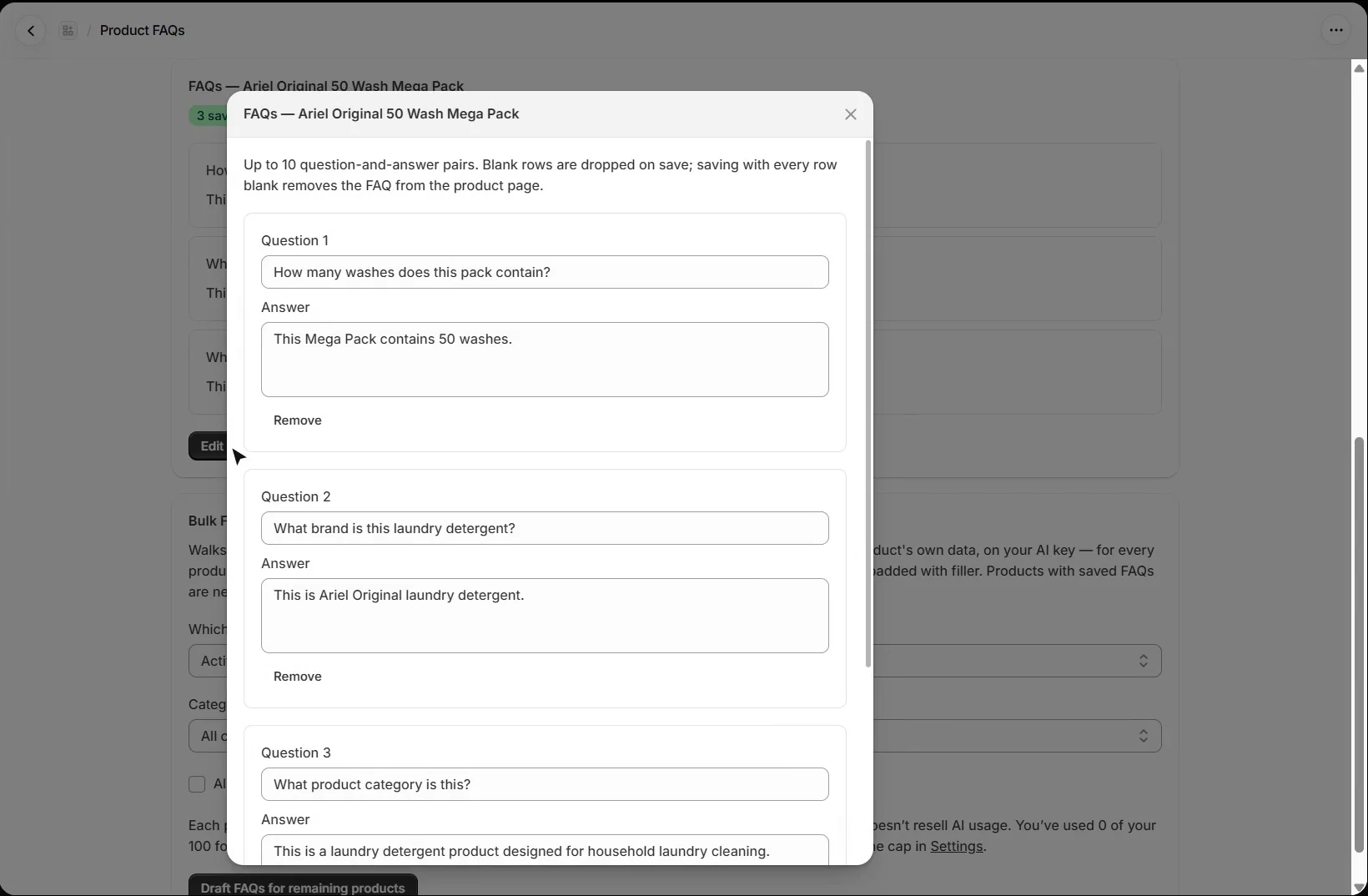
Create FAQs or Edit FAQs opens the editor, with up to ten question-and-answer pairs. Write them by hand, or press Draft with AI, one generation on your own AI key. The draft answers only from the product’s own data: it will not invent shipping times, return policies or compatibility claims, and it writes fewer answers rather than padding. The draft replaces what is in the editor, not what is saved, so review it, then press Save FAQs.
Can I draft FAQs for the whole catalogue?
On Pro, Bulk FAQ generation walks the products you choose and drafts FAQs for every product that has none, one AI generation each on your key, pausing at your daily cap. Products whose data is too thin for honest answers are skipped and listed. Products with saved FAQs are never touched unless you tick the option to redraft them.
What should I set up next?
Next is trust: your organization, store trust and reviews. Every walkthrough is listed in the Shopify video tutorials.
Still stuck?
Message me directly — free tier included. Most replies land within the hour during Tampa working hours. Get support →