Docs / for Shopify / Product schema and the storefront blocks in AEO Ultimate for Shopify
AEO Ultimate for Shopify
Product schema and the storefront blocks
Product schema is structured data on each product page. It tells search engines and AI assistants exactly what you sell: the name, price, stock, brand, barcode and options. This guide covers what AEO Ultimate publishes, how to turn it on, and how to fill the gaps behind it. Watch the walkthrough, or read the guide below.
What does the AEO Merchant Listing block publish?
AEO Ultimate publishes product schema through a block in your theme called AEO Merchant Listing. A product with variants is published as a product group with every variant; a single item as one product. Each carries its offer with the live price and stock, the brand and a breadcrumb trail. Shipping and returns come from the block’s own settings in the theme editor, and are only published for products that ship.
Ratings appear only when a review app writes Shopify’s standard rating fields for a product. The app never makes them up, so a store with no reviews publishes no rating, which is the correct output.
How do I turn the block on?
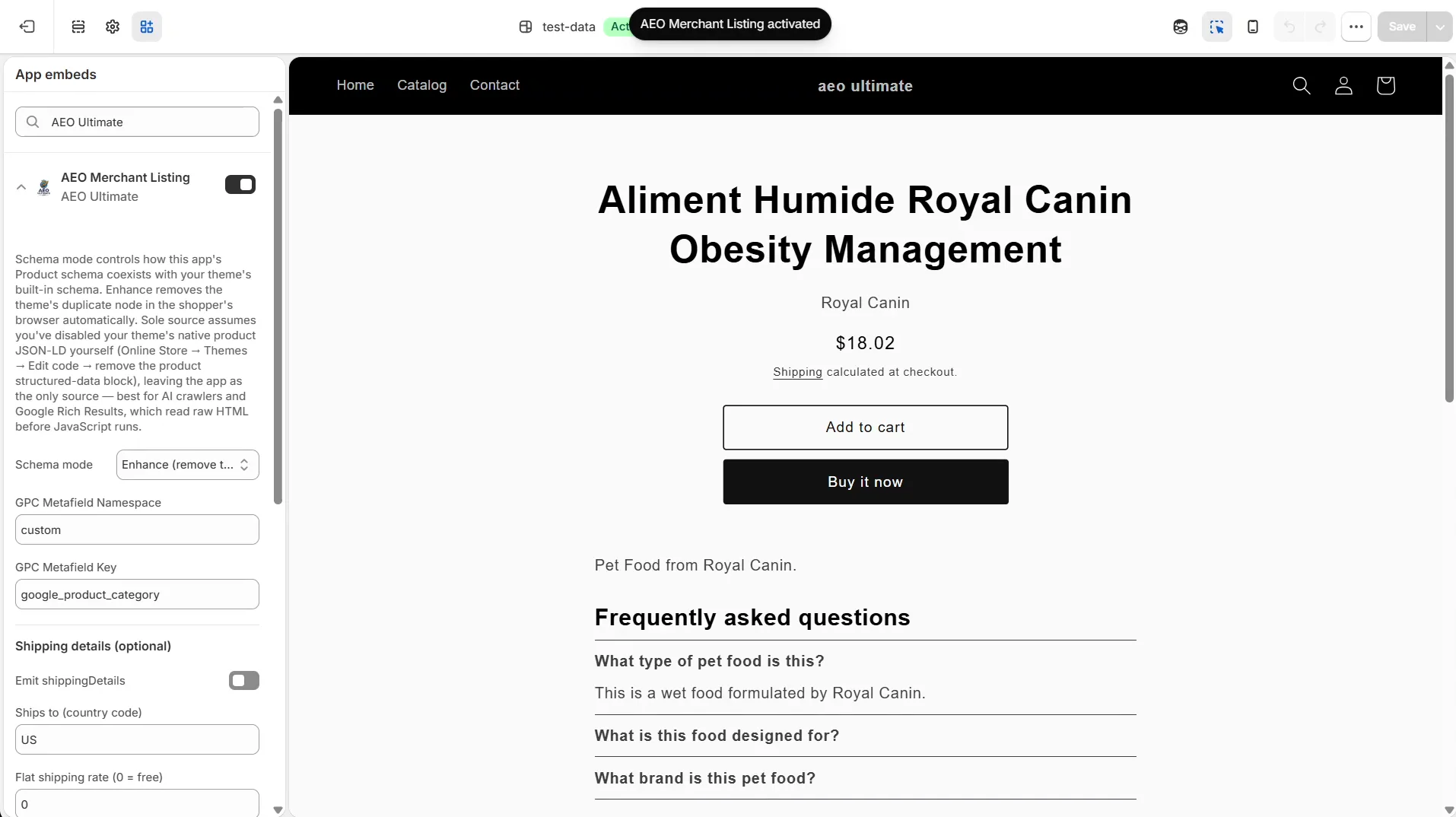
On Start → Home, under Turn on the storefront blocks, click Enable in theme editor next to AEO Merchant Listing. It opens Shopify’s theme editor in a new tab with the block already switched on. Press Save, and it is live on every product page. Nothing is written into your theme’s own code: the block goes out through Shopify’s theme app extension.
How do I see what is published for a product?
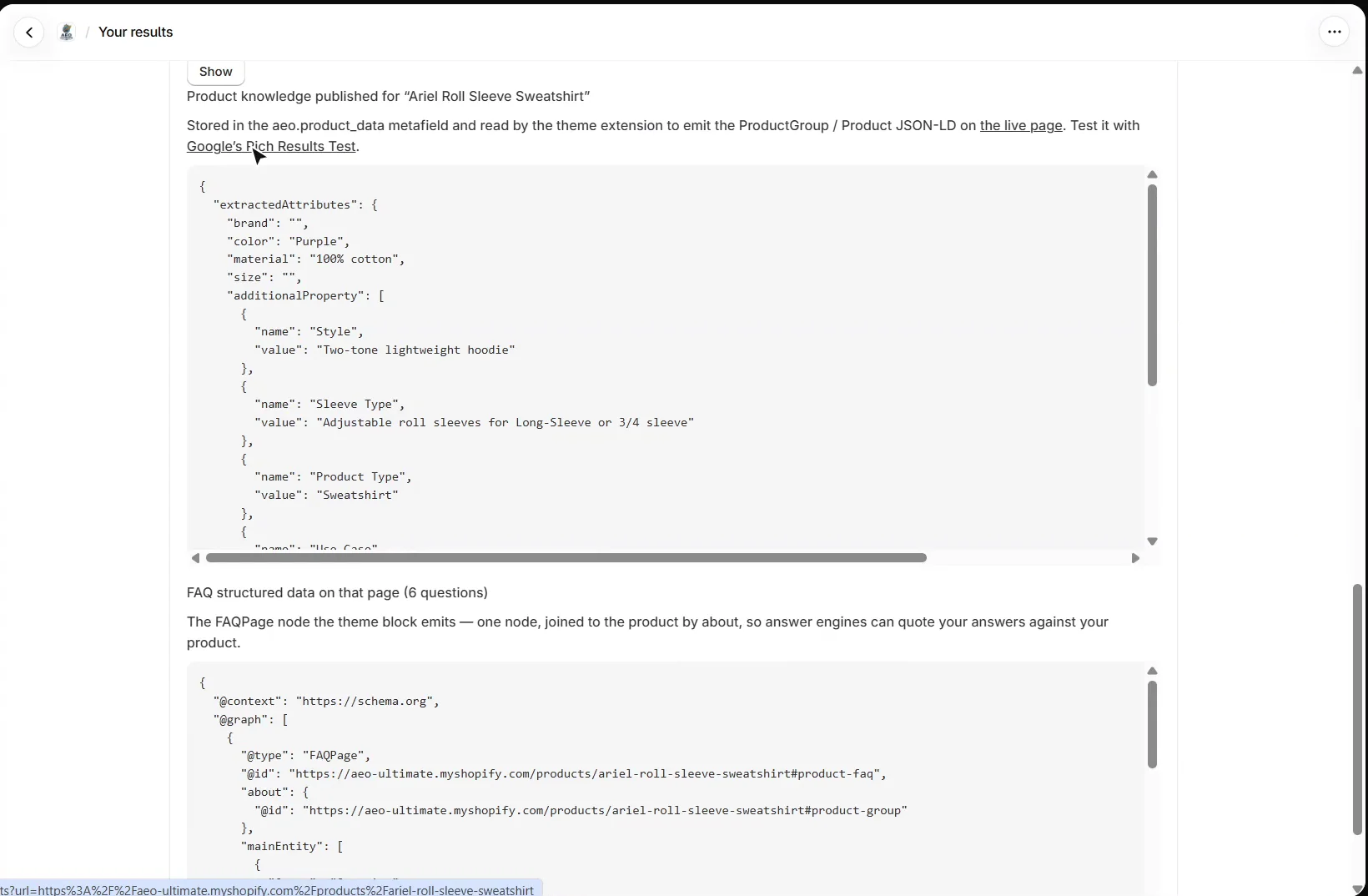
Start → Your results shows the product knowledge the app stores for each product: the data the block turns into schema. Pick a product under Show the code for to see it, then use the Google’s Rich Results Test link to test the live page.
Why is my product schema thin?
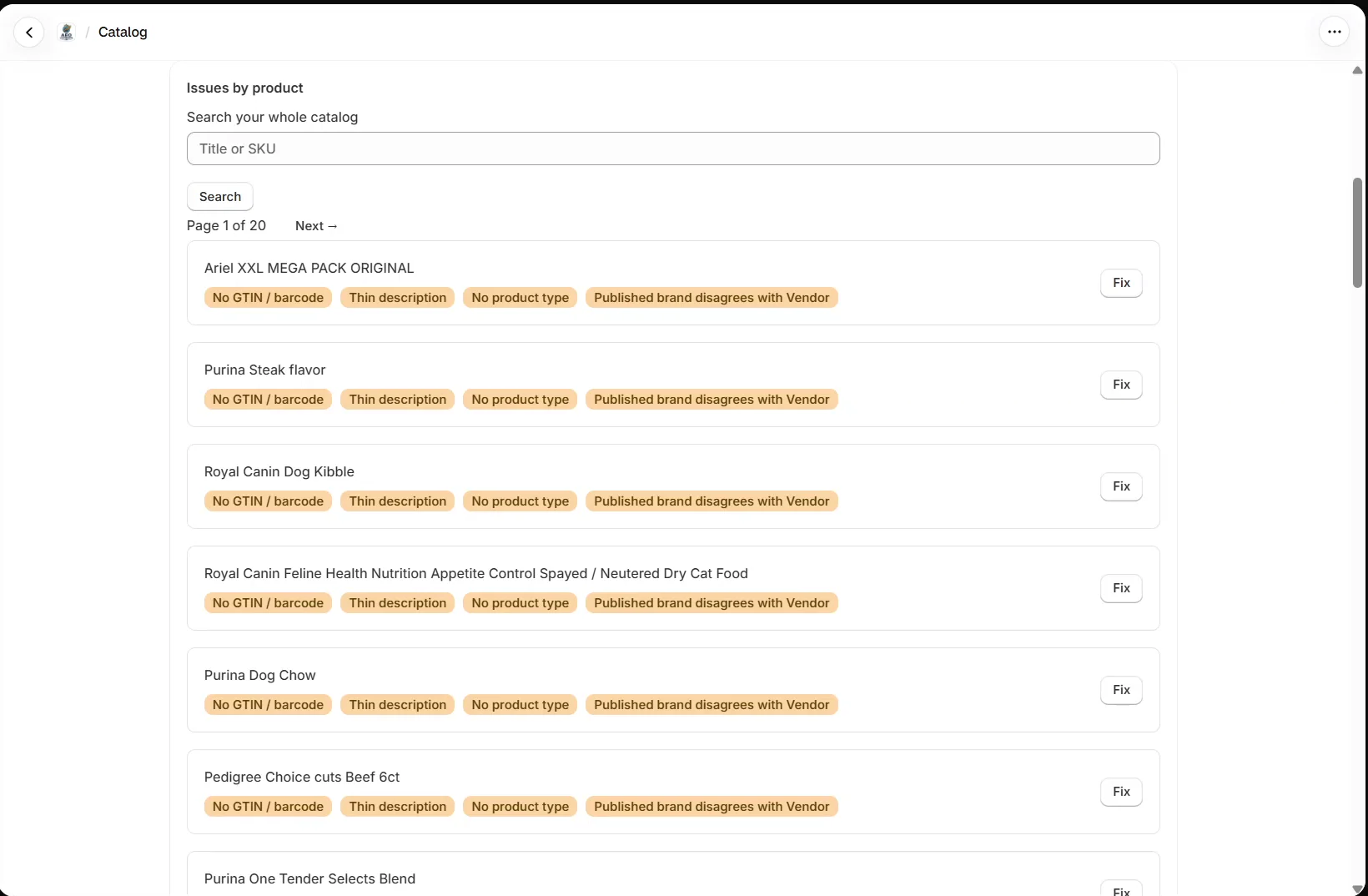
Schema is only as good as the product data behind it. Catalog → Issues lists the gaps product by product: no barcode (GTIN), which search engines use to match the same item across stores; thin descriptions; missing product types; and products not yet enriched. Each has a Fix button.
What does AI enrichment add?
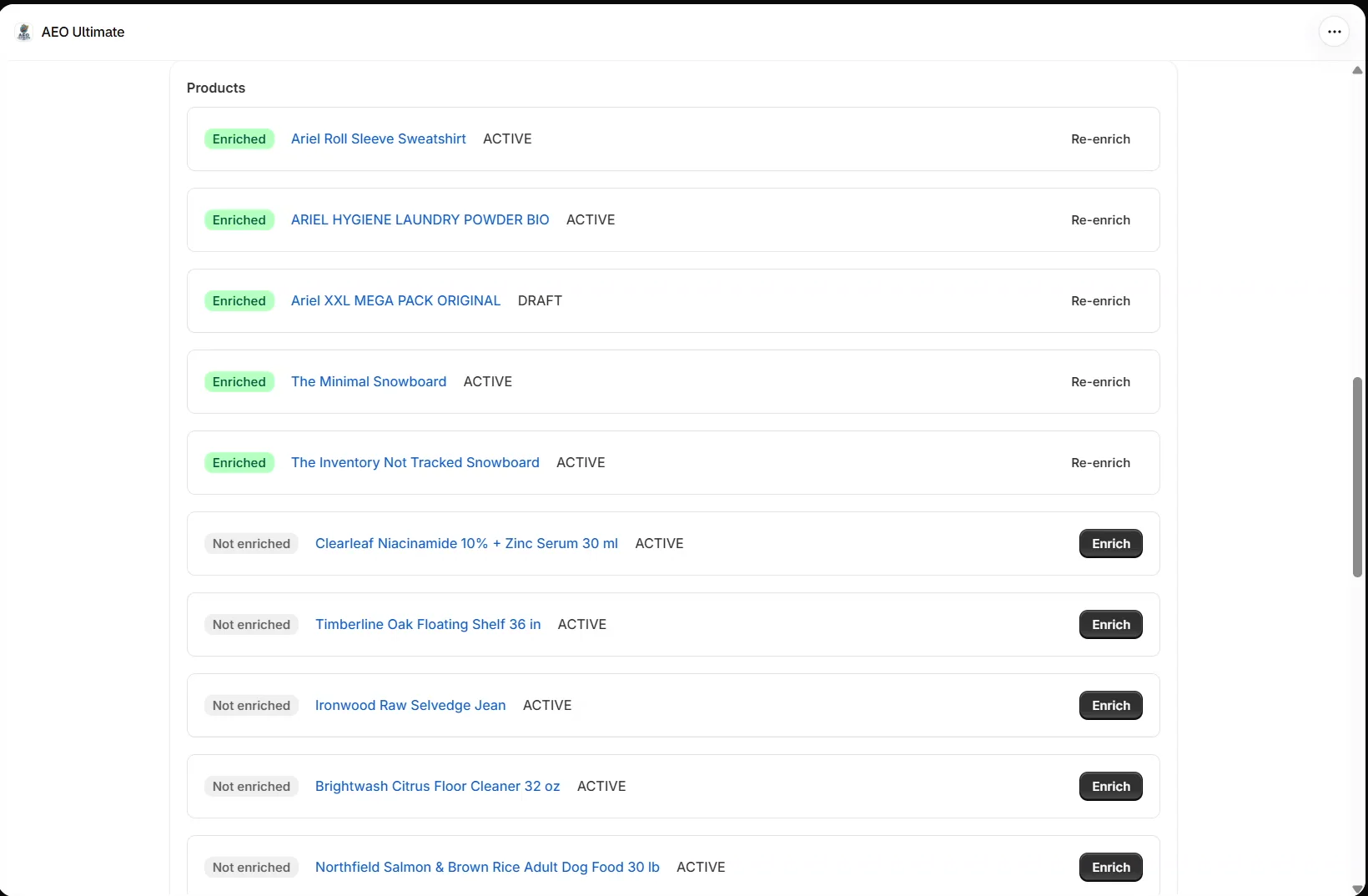
Enrichment fills the rest. On the Mid plan and above, AI reads each product and extracts attributes like brand, material, colour and size, plus a Google product category, and stores them for the block to publish. It runs on your own AI key. Enrich products one at a time from the product list on Home, or all at once with Bulk enrich on Pro.
What should I set up next?
Next is Agent Ready: whether AI shopping agents can reach and read your products. Every walkthrough is listed in the Shopify video tutorials.
Still stuck?
Message me directly — free tier included. Most replies land within the hour during Tampa working hours. Get support →