Docs / Store for Wix / Fix your Wix catalog for AI: enrichment and Catalog Health
AEO Ultimate Store for Wix
Fix your Wix catalog for AI: enrichment and Catalog Health
Answer engines can only recommend products they can read. This guide fixes the first thing on your Action Plan, your products: AI enrichment on the Catalog page, then the free checks on Catalog Health, including finding a manufacturer image for a product that has none. Watch the walkthrough, or read the guide below.
Read the transcript
0:00 The Catalog page
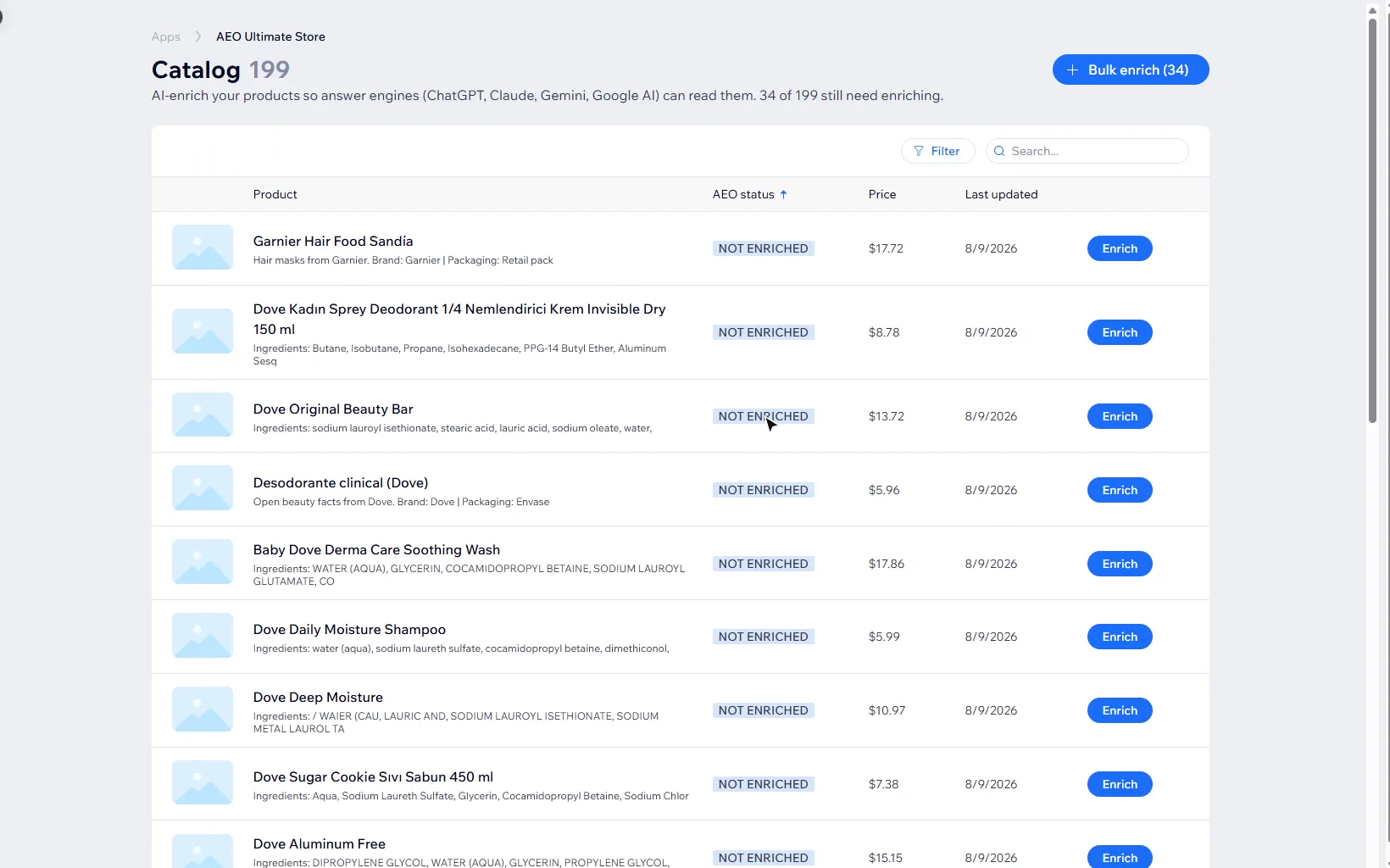
This video fixes the first thing on your Action Plan: your products. The Catalog page lists every product in your Wix store and whether it's been AEO-enriched. In this demo store, 34 of 199 products still need it.
0:16 What enrichment adds
Enrichment reads each product's name and description and turns them into structured data: attributes like size and ingredients, a Google product category, and the brand as a verified entity. Without that, an assistant has to guess what a product is from prose.
0:33 Enrich a product
Let's enrich this one. It uses your own AI key, three generations per product, and takes a few seconds.
0:40 Enriched, and bulk enrich
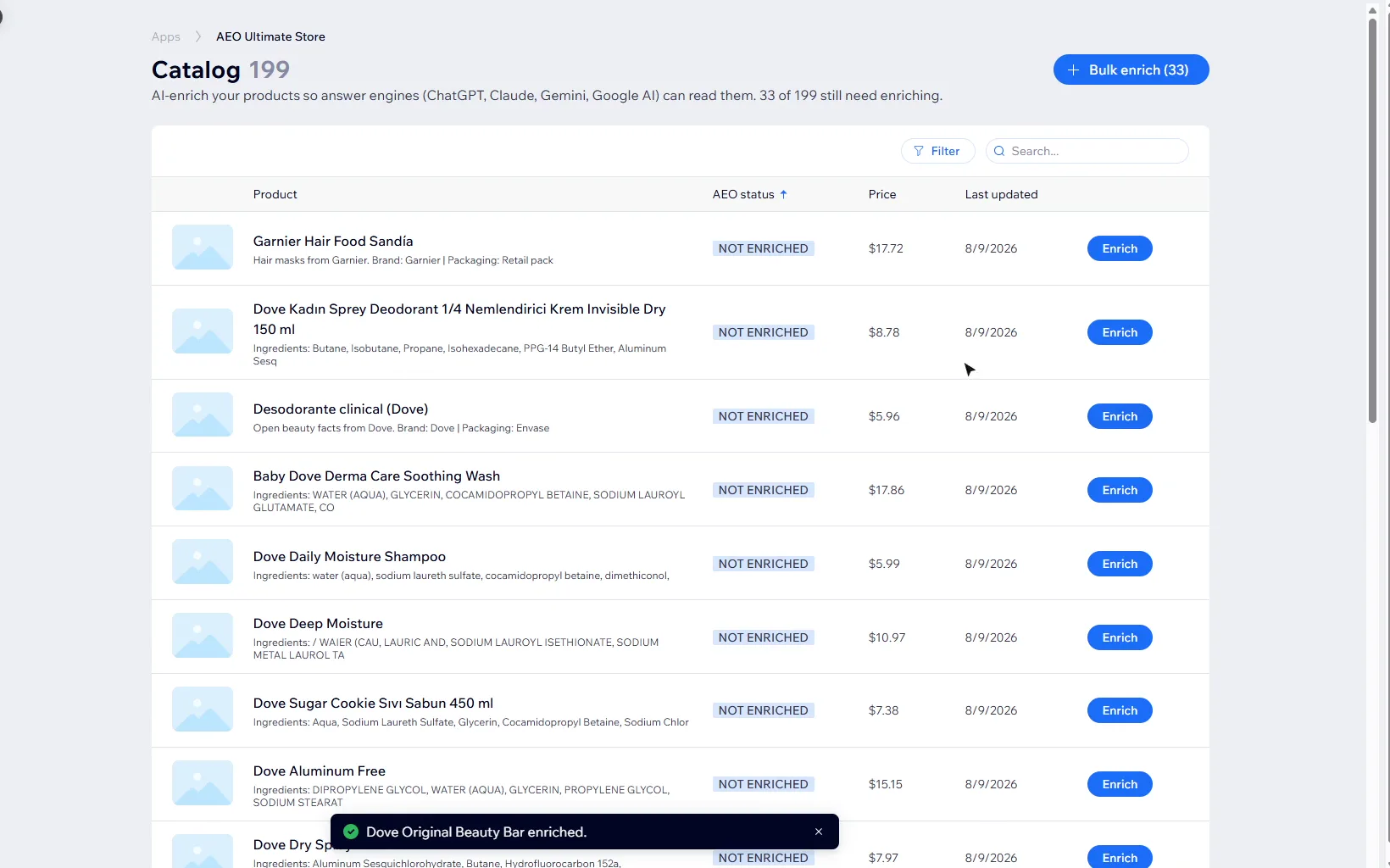
Done. The count drops to 33. On Mid you enrich one product at a time like this. On Pro, Bulk enrich runs through the rest of the catalog, paced by your daily AI budget.
0:55 Catalog Health
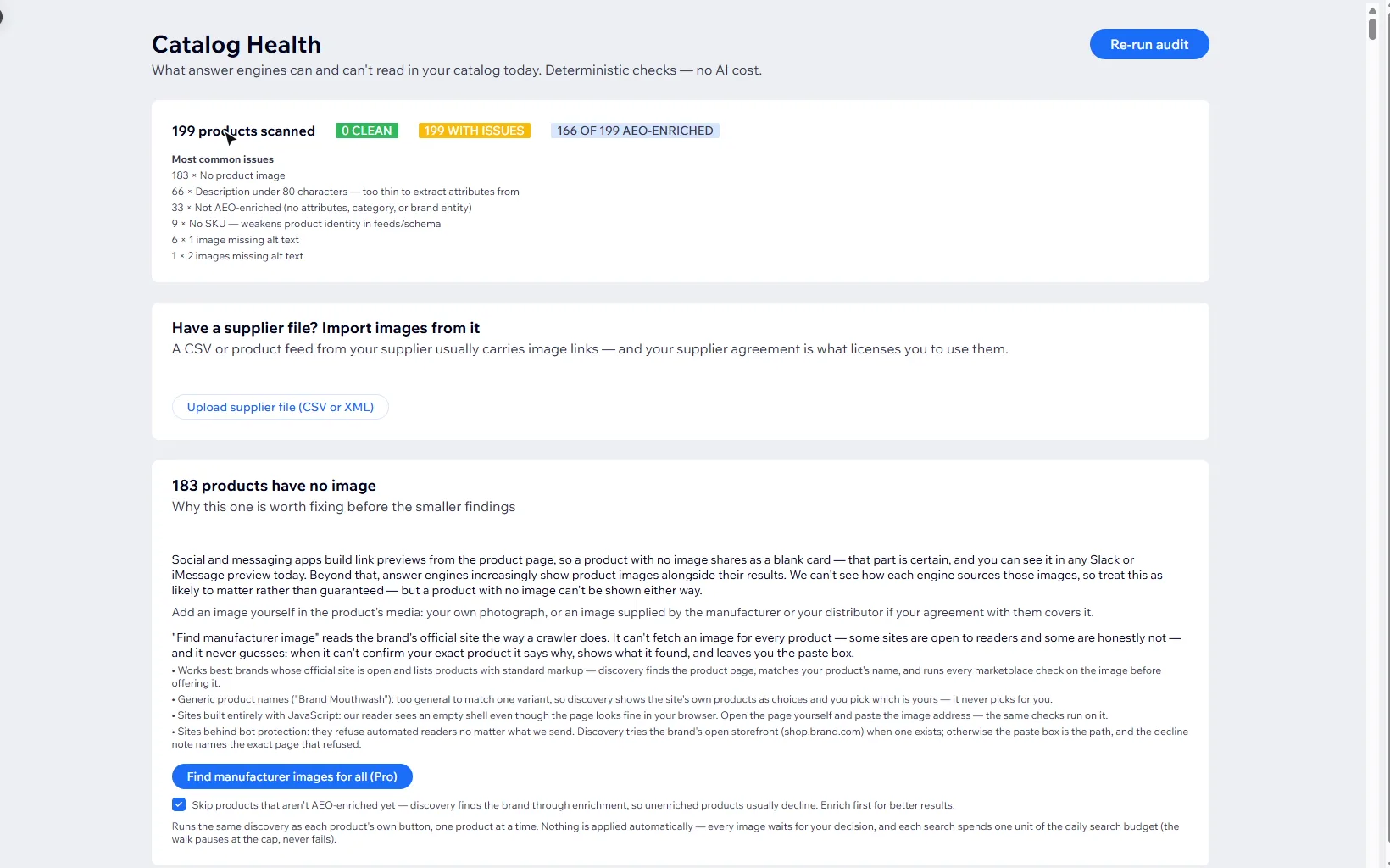
Catalog Health checks what answer engines can and can't read in your catalog. These are plain checks, so they cost nothing to run. Every product here has at least one issue, and the most common ones are listed first.
1:09 Import images from a supplier file
Missing images are the biggest gap here. If your supplier gave you a CSV or product feed, upload it: images are matched by exact SKU only, never by name, and your supplier agreement is what licenses them.
1:23 Why images matter
A product with no image shares as a blank link preview, and that part is certain. Answer engines increasingly show product images too, so it's likely to matter there as well. Either way, a product with no image can't be shown.
1:38 Find a manufacturer image
No supplier file? Find manufacturer image reads the brand's official site the way a crawler does. Let's search for one product and try it.
1:48 Checking the result
It found the product on frosch.de, the brand's verified official site. Each image is checked against Google Merchant Center and Amazon minimums. This one passes Google's, but it's too small for Amazon's.
2:02 What's next
Nothing is added to your product until you click Use this image, and you confirm the rights. Next, we'll publish what enrichment found as product schema.
What does AEO enrichment add to a Wix product?
Enrichment reads each product’s name and description and turns them into structured data: attributes such as size and ingredients, a Google product category, and the brand as a verified entity. Without that, an assistant has to work out what a product is from prose, and it will often decline to recommend a product rather than guess.
The Catalog page lists every product in your Wix store with its AEO status. Click the AEO status column to bring the products that still need enriching to the top.
How do I enrich my products?
Click Enrich on a product’s row. It runs on your own AI key (set in Settings), uses three generations per product, and takes a few seconds. When it finishes, the product shows Enriched with the date and the “still need enriching” count goes down.
- Mid enriches one product at a time.
- Pro adds Bulk enrich, which works through the rest of the catalog from your browser, paced by your daily AI budget. Keep the page open while it runs; anything already done is saved.
- A daily budget that runs out pauses the work. It never fails it, and the count resets at midnight UTC.
What does Catalog Health check?
Catalog Health shows what answer engines can and can’t read in your catalog today. These are plain checks with no AI cost, and they run on every plan, Free included. The most common issues are listed first, and each product has its own card with its issues and an Edit product link. You can search the list, filter it by issue, and sort it.
- Products with no image
- Descriptions under 80 characters, too thin to extract attributes from
- Products that aren’t AEO-enriched yet
- Products with no SKU, which weakens product identity in feeds and schema
- Images missing alt text
How do I add images from a supplier file?
If your supplier gave you a CSV or product feed, it usually carries image links. Click Upload supplier file (CSV or XML): the file is read in your browser, and images are matched to your products by exact SKU only, never by name, so a match is the same item and not a guess. You choose which matched products to update, and the feed’s first image is added to each one’s media without replacing anything. Your supplier agreement is what licenses you to use the images.
Why do product images matter for AI answers?
A product with no image shares as a blank card in Slack, iMessage and other link previews, and that part is certain. Answer engines increasingly show product images alongside their results too. Nobody publishes how each engine sources those images, so treat it as likely to matter rather than guaranteed. Either way, a product with no image can’t be shown.
How does Find manufacturer image work?
For a product with no image, Find manufacturer image reads the brand’s official site the way a crawler does, finds the product’s page, and offers the images it can confirm. Each candidate shows where it came from and is checked against Google Merchant Center and Amazon image minimums, file format, proportions and file size. In the video, it found two images for Frosch Dishwashing Lotion on frosch.de: both pass Google’s minimum, and both are too small for Amazon’s.
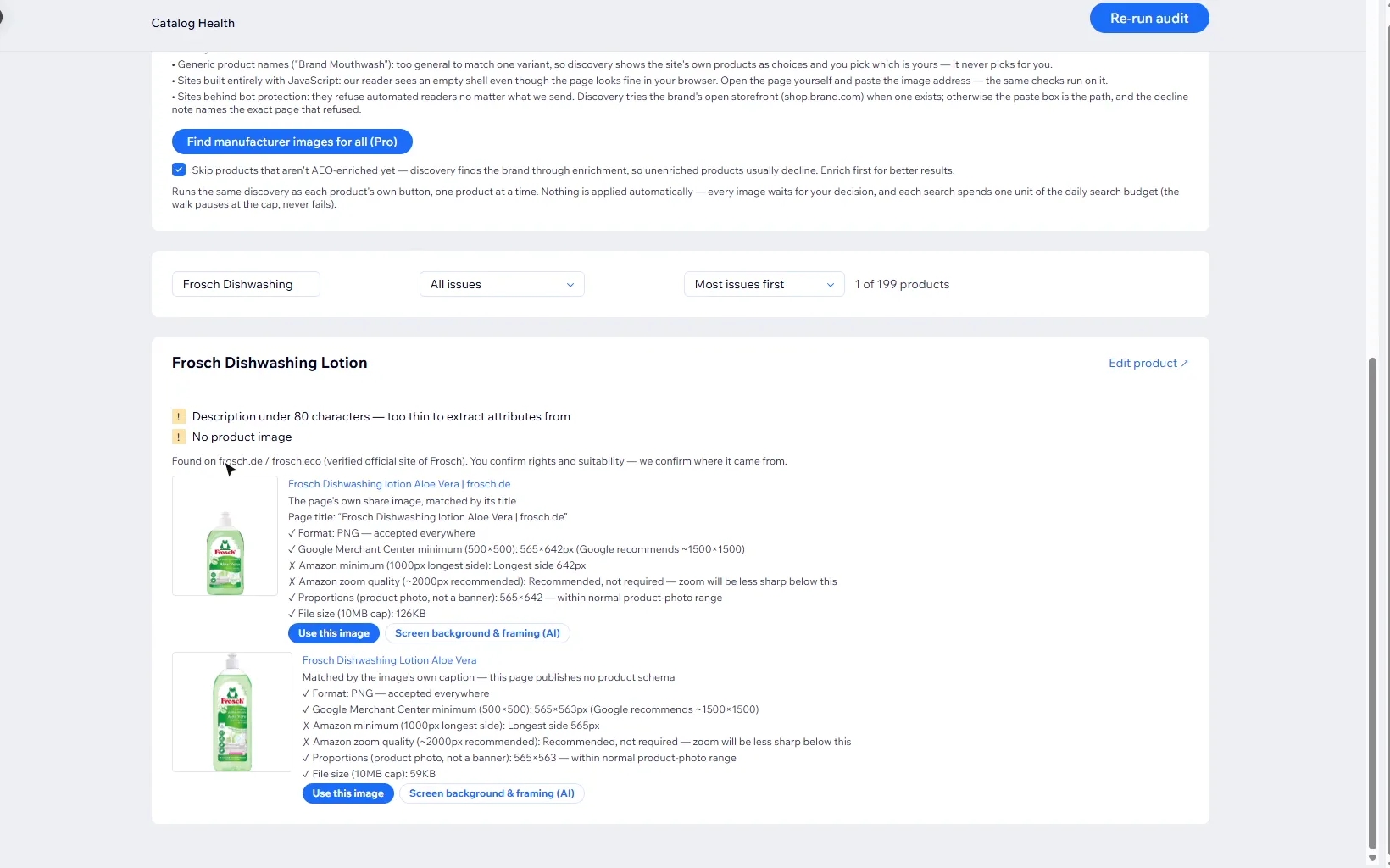
It never guesses. When it can’t confirm your exact product, it says why, shows what it found, and leaves you a box to paste an image address yourself; the same checks run on that.
- Works best on brands whose official site is open and lists products with standard markup.
- Generic product names (“Brand Mouthwash”) get a choice of the site’s own products, and you pick which is yours.
- Sites built entirely with JavaScript or behind bot protection can’t be read automatically: open the page yourself and paste the image address.
- Enrich the product first. The brand identity that guides the search comes from enrichment, and enrichment reads your description.
One product at a time is on Mid; Find manufacturer images for all on Pro runs the same search across the catalog. Each search uses one unit of the daily search budget.
Does anything change my store without me?
No. Enrichment saves its data in the app, not in your product’s own fields. An image is added to a product only when you click Use this image or add images from a supplier file, and you confirm you have the rights to use it. Re-run the audit afterwards to see the findings clear.
What should I read next?
Start with getting started with AEO Ultimate Store for Wix if you haven’t set up the Action Plan and your AI key yet. Every screen, and what your plan unlocks covers the rest of the app. Next is publishing what enrichment found as product schema.
Still stuck?
Message me directly — free tier included. Most replies land within the hour during Tampa working hours. Get support →